Understanding Roles & Permissions in the Admin Portal
Introduction
Managing who can access different parts of your system is an important part of running your business smoothly and securely.
In SAS Cleaning Suite, Role-Based Access Control helps you decide:
- Who can view information
- Who can edit records
- Who can manage projects
- Who can access financial data
- Who can perform administrative actions
This system helps keep your business organized while making sure users only see the tools and information they need for their job.
Whether you manage a small cleaning team or multiple branches, this guide will help you understand how roles and permissions work inside the Admin Portal.
What You’ll Learn
In this guide, you’ll learn how to:
- Understand different user roles
- Assign permissions to staff members
- Control access to modules and features
- Manage multi-role access
- Restrict sensitive business information
- Monitor user access and activity
- Improve account security and team management
How Role-Based Access Works
Inside SAS Cleaning Suite, every staff member is assigned a role.
Each role determines:
- What the user can access
- What actions they can perform
- Which portal features they can use
- What information they can view or edit
This helps prevent unauthorized access and reduces operational mistakes.
Common User Roles in SAS Cleaning Suite
The platform supports multiple user roles depending on your business structure.
Super Admin
The Super Admin has full system access.
This role can:
- Manage company settings
- Create and edit branches
- Add or remove users
- Access financial information
- Configure permissions
- View all projects and operations
This role is usually assigned to the business owner or company administrator.
Manager
Managers help oversee daily operations and team coordination.
Managers can usually:
- Manage assigned projects
- Assign cleaners and contractors
- Monitor schedules
- Review work reports
- Approve timesheets
- Communicate with staff
Managers typically have limited access to sensitive company settings.
Cleaner
Cleaners mainly use the system for daily task execution.
Cleaners can usually:
- View assigned jobs
- Clock in and clock out
- Submit work reports
- Upload job photos
- View schedules
- Communicate with managers
Cleaners normally cannot access financial or administrative settings.
Contractor
Contractors have similar access to cleaners but may work independently or temporarily.
Contractors can usually:
- View assigned tasks
- Submit reports
- Track schedules
- Update job progress
Their access is often more limited than internal staff.
Finance Staff
Finance users focus on billing and payment-related operations.
They may have access to:
- Invoices
- Payroll
- Payment tracking
- Financial reports
They may not have access to operational management features.
Read-Only Viewer
This role is useful for auditors, supervisors, or company stakeholders.
Users with this role can:
- View records
- Monitor operations
- Review reports
However, they cannot:
- Edit information
- Delete records
- Change settings
How to Assign a Role to a User
You can assign roles while creating or editing staff accounts.
Steps to Assign a Role
- Open the Admin Portal
- Go to User Management
- Select Add User or open an existing user profile
- Find the Role Selection section
- Choose the appropriate role
- Save changes
The user will now receive permissions based on the selected role.
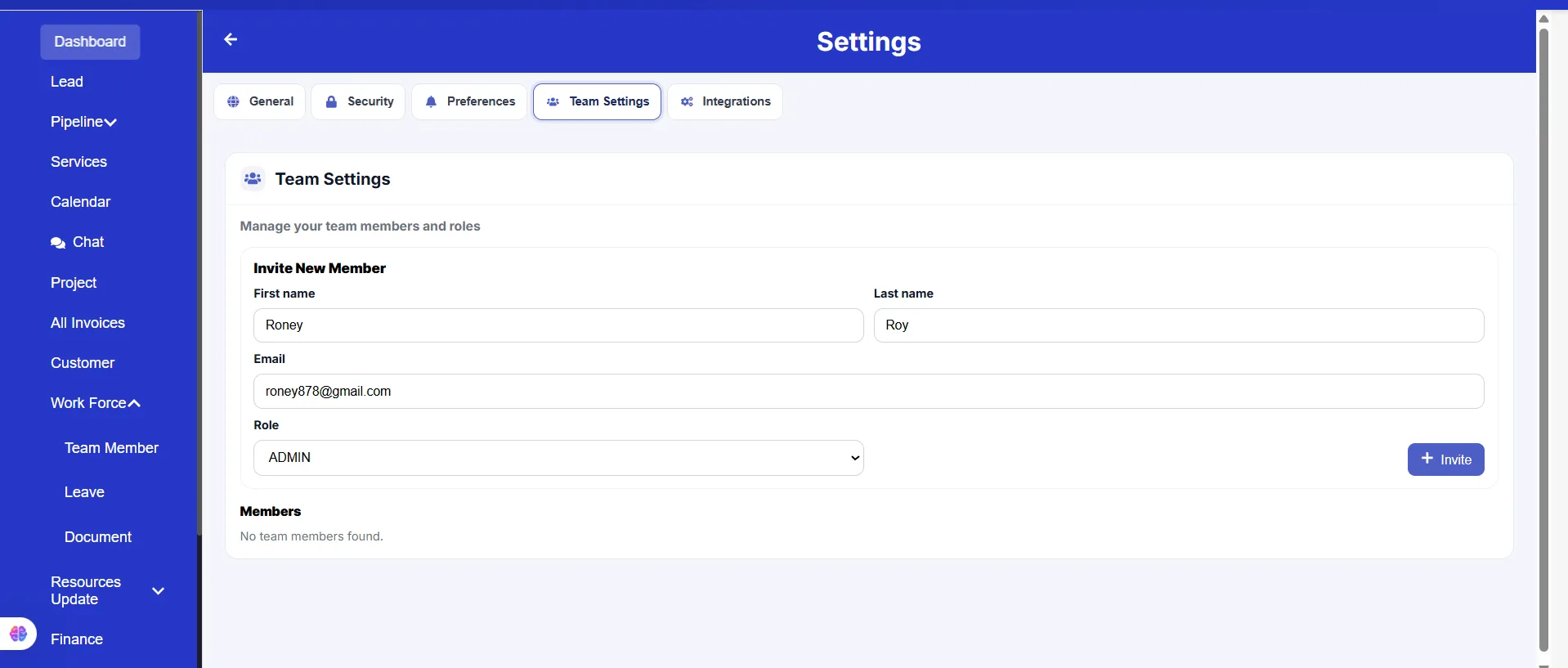
How to Create Custom Roles
Some businesses need more flexible permission control.
You can create custom roles for specific departments or responsibilities.
Example Custom Roles
- HR Manager
- Operations Supervisor
- Inventory Coordinator
- Regional Manager
- Payroll Assistant
Steps to Create a Custom Role
- Open Settings
- Go to Roles & Permissions
- Click Create New Role
- Enter a role name
- Select allowed permissions
- Save the role
You can then assign the custom role to users.
Understanding Permissions
Permissions control what users can do inside the platform.
You can allow or restrict actions such as:
- Viewing records
- Editing information
- Deleting data
- Approving requests
- Managing schedules
- Accessing reports
- Viewing payroll
- Managing invoices
- Accessing settings
This helps protect important company information.
Restricting Access to Modules
You may not want every user to access every module.
For example:
- Cleaners should not access payroll
- Contractors should not change company settings
- Finance staff should not edit project schedules
Role-based permissions help keep access organized and secure.
Managing Multi-Role Access
Some users may need access to multiple responsibilities.
For example:
- A Manager may also handle payroll
- An Admin may also oversee operations
- A Supervisor may manage inventory
In these cases, admins can assign multiple permissions or expanded access levels.
Monitoring User Permissions
It is important to review permissions regularly.
This helps you:
- Prevent unauthorized access
- Reduce security risks
- Avoid operational mistakes
- Keep staff responsibilities updated
Things to Review Regularly
Check:
- Active user accounts
- Assigned roles
- Disabled users
- Branch assignments
- Sensitive permissions
- Staff who no longer need access
User Activity & Security Monitoring
The Admin Portal also helps monitor user activity.
Admins can review:
- Login history
- Device activity
- Active sessions
- Permission changes
- User actions inside the system
This improves accountability and system security.
Removing or Updating Access
If a staff member changes roles or leaves the company, their access should be updated immediately.
Steps to Update User Access
- Open User Management
- Select the user profile
- Update the role or permissions
- Save changes
Steps to Disable a User
- Open the user profile
- Change account status to Disabled
- Save changes
Disabled users can no longer log in to the system.
Daily Workflow Example
Here’s an example of how admins commonly manage permissions:
- Add a new cleaner to the system
- Assign the Cleaner role
- Give branch access
- Restrict financial modules
- Add a manager with scheduling permissions
- Review active sessions
- Update permissions when staff responsibilities change
- Disable inactive accounts when needed
Following this process helps maintain a secure and organized system.
Common Permission Mistakes to Avoid
Avoid these common issues:
- Giving full admin access to all staff
- Forgetting to disable old accounts
- Allowing cleaners to access sensitive modules
- Using shared login accounts
- Not reviewing permissions regularly
- Assigning incorrect branch access
Proper permission management helps prevent confusion and security risks.
Best Practices
To keep your system secure and organized:
✔ Give users only the access they need
✔ Review permissions regularly
✔ Disable unused accounts immediately
✔ Separate financial access from operational access
✔ Use strong passwords and Two-Factor Authentication (2FA)
✔ Monitor login activity frequently
✔ Keep branch assignments updated
✔ Avoid sharing admin accounts between staff members
Conclusion
Role-Based Access Control helps you manage your team more securely and efficiently inside SAS Cleaning Suite.
By assigning the correct roles and permissions, you can:
- Protect sensitive business information
- Reduce operational mistakes
- Improve team organization
- Control access to important features
- Monitor staff activity more effectively
Using roles properly helps your business stay secure, organized, and easier to manage as your operations grow.