System Navigation – Admin Portal Guide
Introduction
Welcome to SAS Cleaning Suite
The Admin Portal is designed to be simple and easy to use, even if you’re not familiar with software systems. This guide will help you understand how to move around the platform, find important features, and use the main menus confidently.
Once you understand navigation, you’ll be able to manage leads, projects, staff, finances, and reports much faster — all from one place.
In this guide, you’ll learn:
- How the dashboard works
- How to use the main menu
- How to move between modules
- How to find key features quickly
- How to navigate daily tasks with ease
What You’ll Learn
By the end of this guide, you’ll know how to:
- Use the Admin Dashboard as your control center
- Navigate the sidebar menu
- Access core modules like Leads, Projects, and Finance
- Switch between sections smoothly
- Find information quickly using search and shortcuts
System Navigation Overview
Most users follow this simple navigation pattern:
Login → Dashboard → Sidebar Menu → Module Selection → Detailed View → Actions → Return to Dashboard
This flow helps you move through the system in a structured and predictable way.
1. Admin Dashboard (Your Main Control Center)
After logging in, the Dashboard is the first screen you will see.
It gives you a quick overview of your entire business in one place.
What You Can See on the Dashboard
- Total revenue overview
- Active and completed projects
- Team performance summary
- Recent activities and updates
- Notifications and alerts
Why the Dashboard Is Important
The dashboard helps you:
- Understand daily business activity at a glance
- Track ongoing operations
- Quickly identify important updates
- Make faster decisions without opening multiple pages
2. Main Sidebar Menu (Your Navigation Panel)
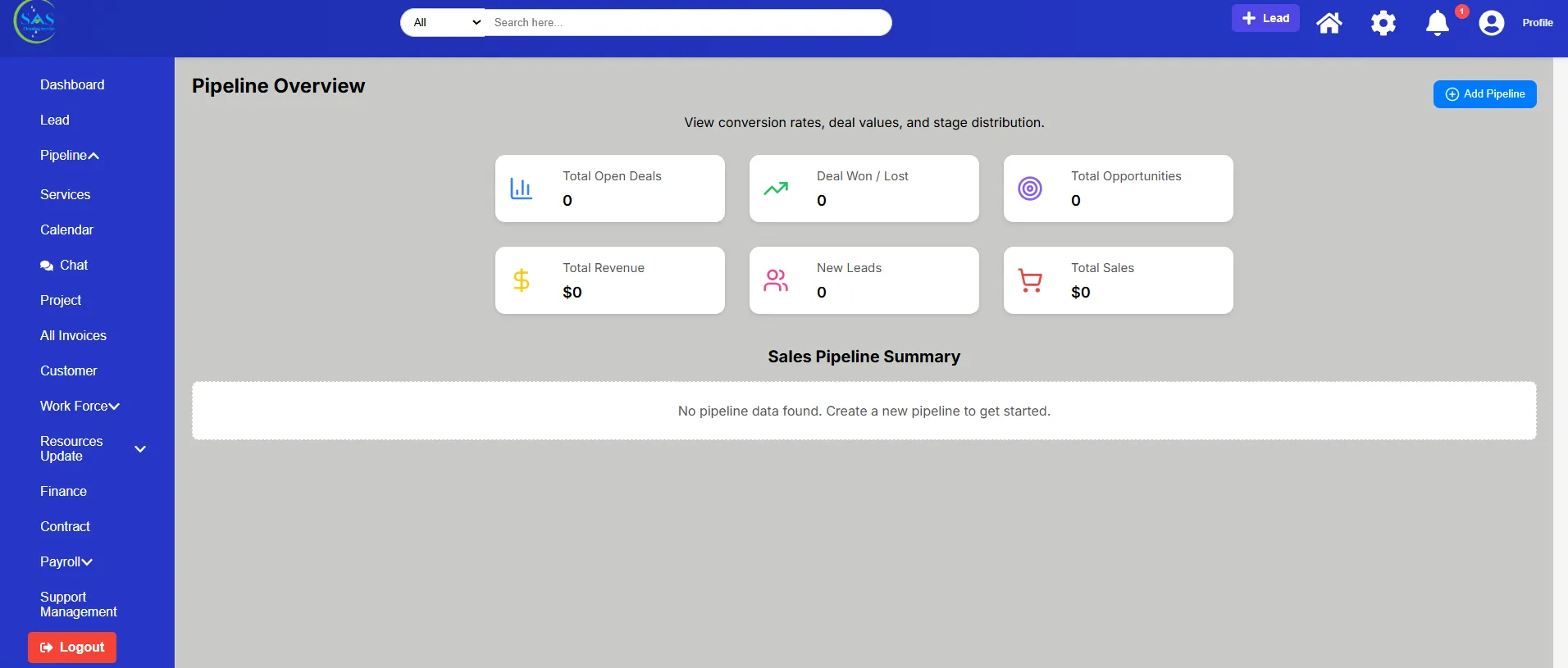
On the left side of the Admin Portal, you will find the Sidebar Menu.
This is your main navigation tool.
What You’ll Find in the Menu
The sidebar is organized into key sections such as:
- Dashboard
- Leads Management
- Sales Pipeline
- Projects & Operations
- Clients
- Workforce (HR)
- Inventory
- Finance & Payroll
- Reports
- Support & Settings
How to Use the Menu
To open any section:
- Click on the menu item
- The page will open in the main workspace
- Use sub-menus if available (dropdown options)
Tip
You can always return to the dashboard by clicking the Dashboard icon at the top or menu.
3. Navigating Between Modules
Each module in the system represents a business area.
For example:
- Leads → Manage potential customers
- Projects → Track cleaning jobs
- Finance → Handle invoices and payments
- Workforce → Manage staff and contractors
How to Move Between Modules
- Open the sidebar menu
- Select a module (e.g., Projects)
- View the list or dashboard inside that module
- Click any item to open full details
- Use back navigation or the menu to switch sections
Example Flow
Dashboard → Leads → Verify Lead → Convert to Project → Assign Team → Track Progress
4. Page Layout Structure (How Screens Are Organized)
Every page in the Admin Portal follows a consistent layout.
A. Header Section (Top Area)
Usually contains:
- Page title
- Search bar (if available)
- Notifications icon
- Profile menu
B. Main Content Area
This is where all data is displayed, such as:
- Tables
- Lists
- Forms
- Reports
- Charts
C. Action Buttons
You will commonly see buttons like:
- Add New
- Edit
- Save
- View Details
- Delete
These buttons help you perform actions quickly.
5. Using Search & Filters
To find information faster, the Admin Portal includes search and filtering tools.
Search Feature
You can search for:
- Clients
- Projects
- Leads
- Staff members
- Invoices
Filters
Filters help you narrow results by:
- Date
- Status (Active / Pending / Completed)
- Location / Branch
- Category
Why This Helps
Instead of scrolling manually, you can quickly find exactly what you need.
6. Notifications & Quick Alerts
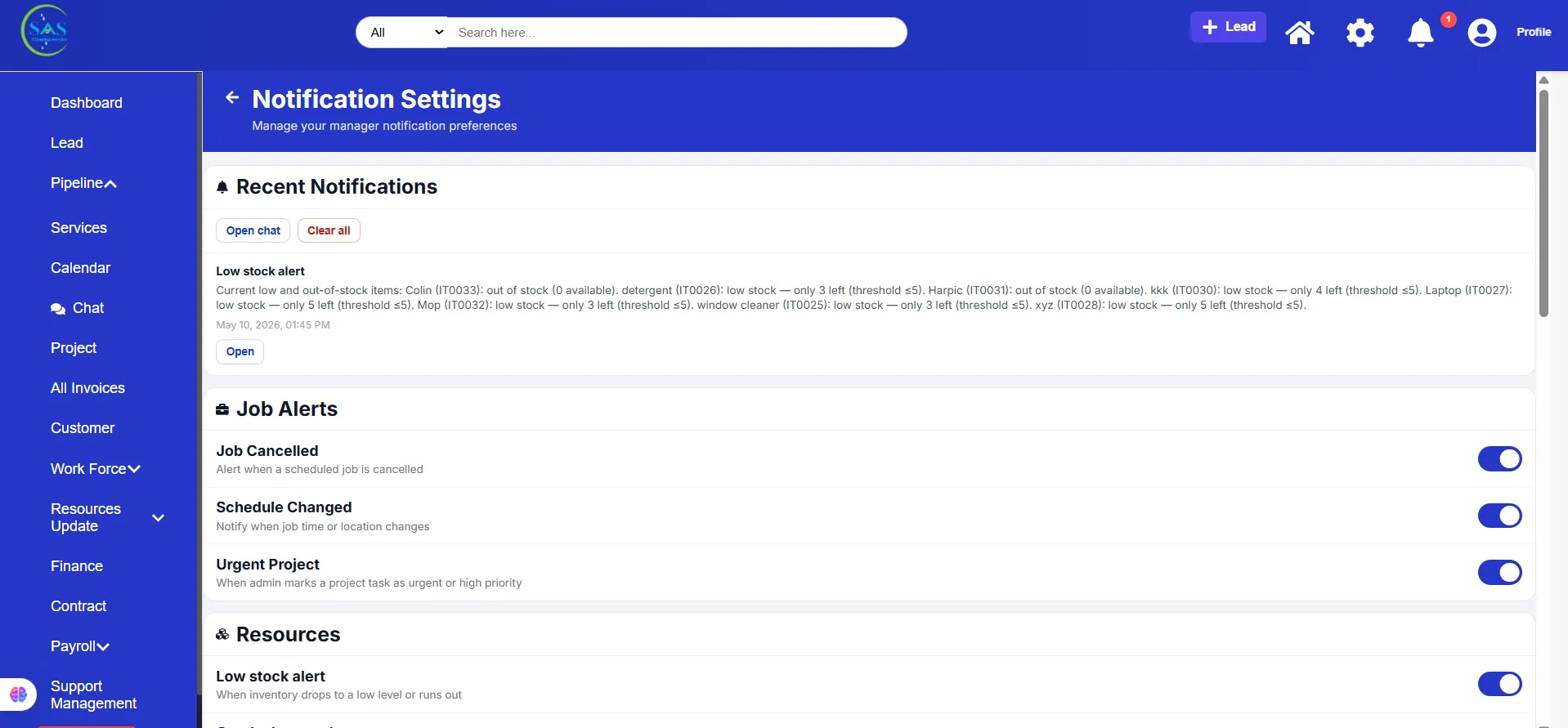
The notification area keeps you updated in real time.
You may see:
- New lead alerts
- Project updates
- Invoice payments
- Staff activity updates
- System messages
How to Use Notifications
- Click the notification icon
- Open the update
- Take action if needed (view, approve, respond)
7. Mobile Navigation Experience
The Admin Portal is fully mobile-friendly.
On mobile devices:
- The sidebar becomes a menu button
- Pages are stacked vertically
- Buttons are optimized for touch
- Navigation is simplified for quick access
Tip for Mobile Users
Use the menu icon to switch sections quickly instead of scrolling long pages.
Daily Navigation Example
Here’s how a typical admin uses navigation daily:
- Log in to Admin Portal
- Check Dashboard overview
- Open Leads from sidebar
- Move to the Projects section
- Review team assignments
- Check Finance for invoices
- Open Notifications for updates
- Return to Dashboard
Best Practices for Navigation
✔ Start your day from the Dashboard
✔ Use the sidebar menu instead of the browser back button
✔ Use search to find records quickly
✔ Check notifications regularly
✔ Keep navigation consistent (don’t jump randomly between modules)
✔ Use filters to reduce manual scrolling
✔ Learn the main modules first for a faster workflow
Conclusion
The System Navigation in SAS Cleaning Suite is designed to keep everything simple, structured, and easy to access.
Once you understand how to navigate the Admin Portal, you can:
- Move between modules faster
- Manage operations more efficiently
- Find information quickly
- Reduce time spent searching
- Improve daily workflow performance
With a little practice, navigating the system becomes natural — helping you run your cleaning business smoothly and confidently every day 🚀