Manager Portal – Profile & Account Settings Guide
Introduction
The Profile & Settings section in the Manager Portal helps you manage your personal information, secure your account, customize your dashboard, and control notifications — all from one convenient place.
This guide is written in a simple, step-by-step format so you can easily use every feature, even if you are not a technical user.
What You Can Do in Profile & Settings
Using this section, you can:
- Update your personal and professional information
- Manage certificates and important documents
- Secure your account and manage login devices
- Customize your dashboard appearance
- Control notifications and alerts
- Access help and support services
Keeping your profile updated helps ensure smooth communication, accurate records, and a better overall experience in the portal.
1. Personal Information & Records
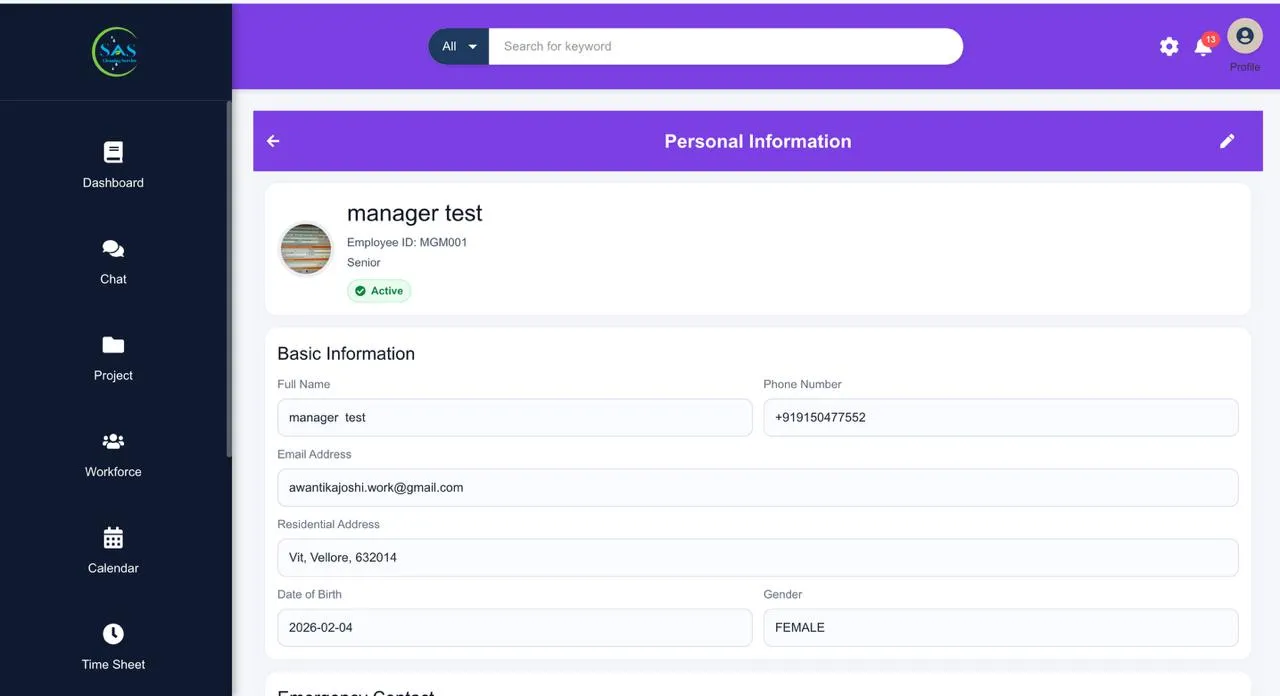
This section works as your professional profile inside the system. You can view and manage your personal details without needing admin assistance.
A. Basic Identity Information
Here, you can view your:
- Full name
- Job role (such as Manager or Senior Manager)
- Employee ID
- Phone number
- Email address
These details are usually verified and connected to your company account.
If any information is incorrect, contact your administrator or support team.
B. Professional Documents
The portal allows you to safely store and manage important professional documents in one place.
What You Can Do
- View uploaded documents
- Upload new files using “Add Document”
- Keep certifications and records organized
Common Document Examples
- Cleaning certifications
- Training certificates
- Academic qualifications
- Compliance documents
Keeping your documents updated helps managers and administrators verify qualifications quickly.
C. Experience Management
You can manually update your:
- Total years of experience
- Professional background information
It’s a good idea to update this section as your experience grows.
D. Financial Records
This section helps you review financial and employment-related information, such as:
- Superannuation fund name
- ABN number
- Member details
Keeping these records accurate helps ensure payments and benefits are processed correctly.
2. Account Settings (Security & Customization)
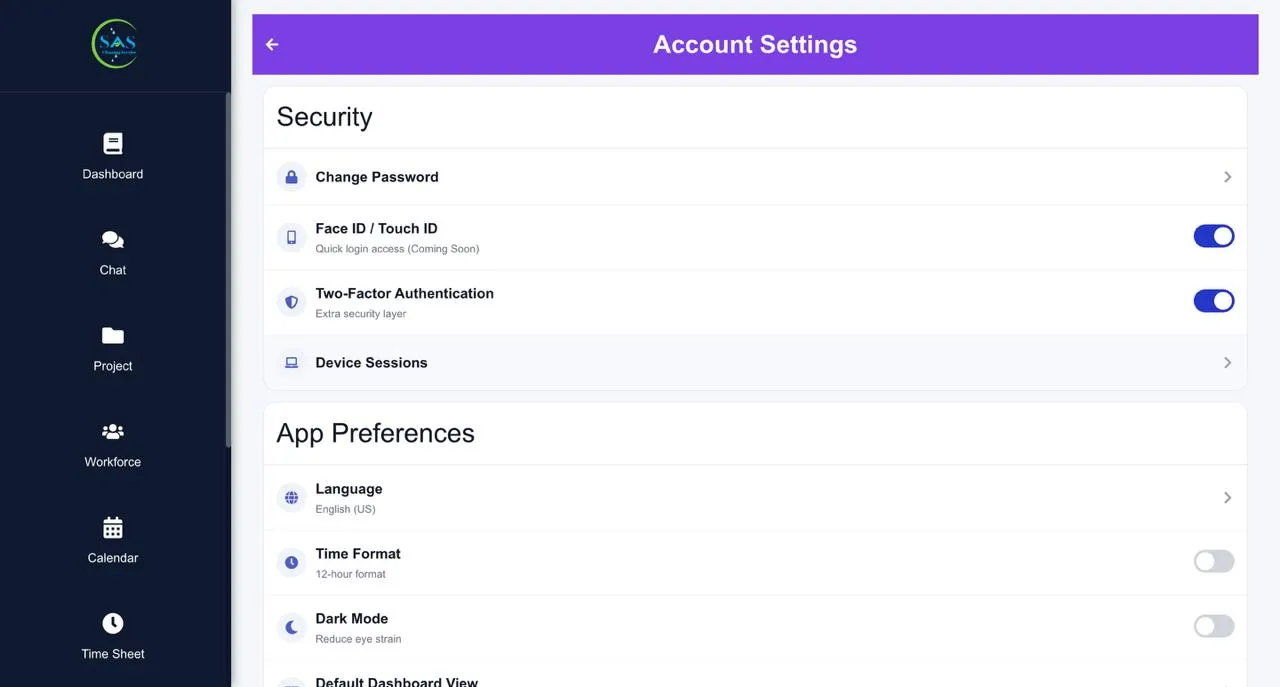
The Account Settings section helps you protect your account and personalize how your portal looks and works.
A. Account Security & Device Management
Protecting your account is important, especially when accessing the system from multiple devices.
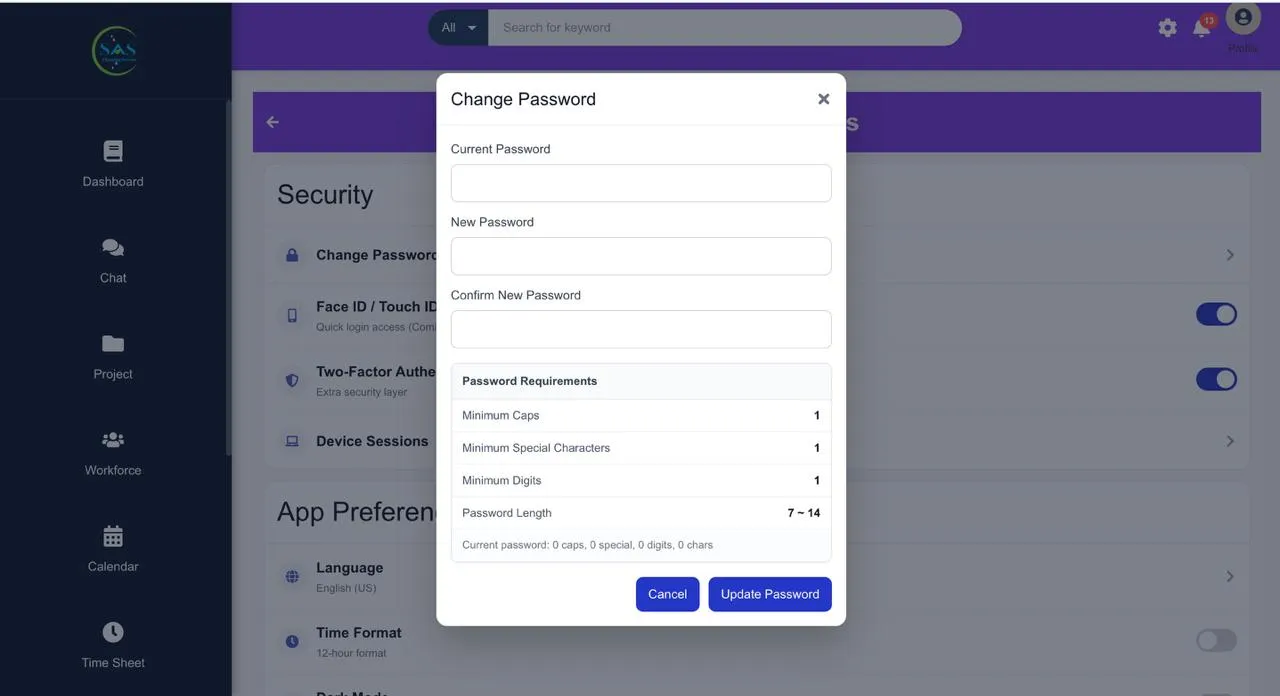
Change Your Password
You can update your password anytime for better security.
Password Requirements
Your password must include:
- 7–14 characters
- At least one uppercase letter
- At least one number
- At least one special character
Example
Manager@123
Choose a password that is secure but easy for you to remember.
Device Sessions
The portal shows all devices currently logged into your account.
You Can View
- Device type (mobile, tablet, laptop, etc.)
- Login location
- Active sessions
You Can Also
- Click “Revoke” to remove unknown or unwanted devices
This feature helps keep your account secure at all times.
Easy Login Options
For faster and easier access, you can enable:
- Face ID
- Fingerprint login
This allows you to log in securely without typing your password every time.
B. Dashboard Preferences & Customization
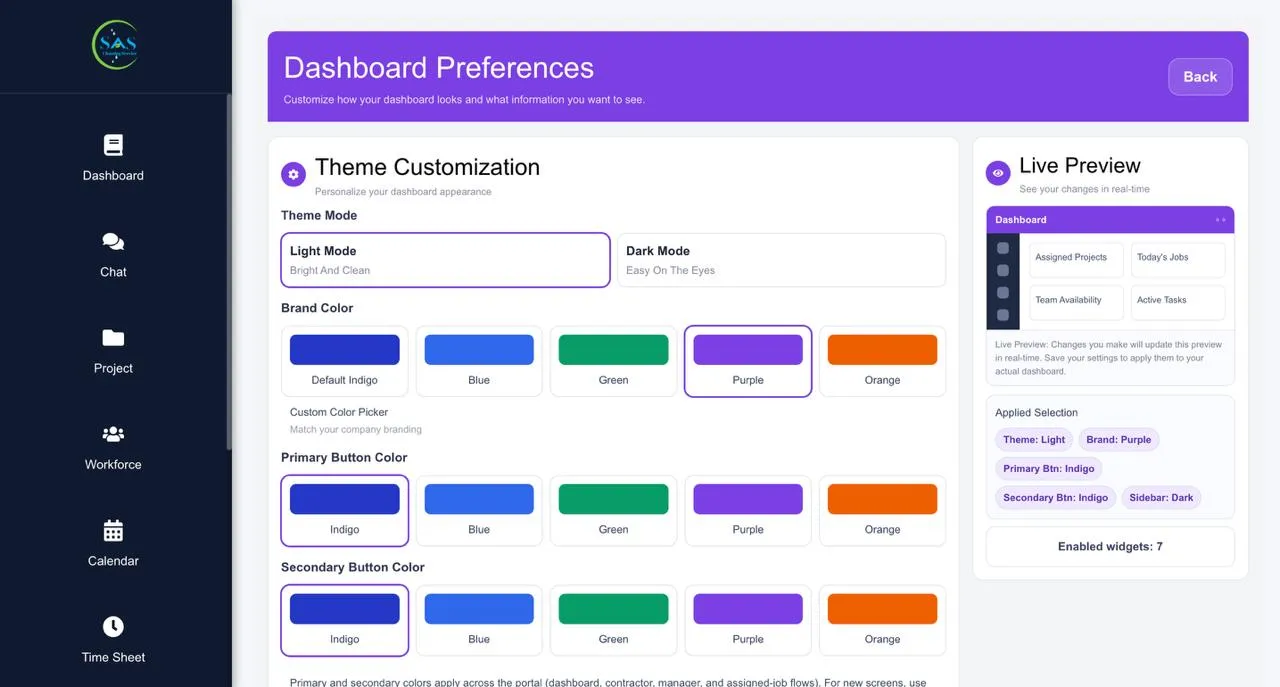
You can personalize the portal to match your working style and visual preference.
Visual Themes
Choose the display mode that feels most comfortable for you:
- Light Mode → Bright and clean appearance
- Dark Mode → Helps reduce eye strain, especially at night
Theme Colors
You can choose your preferred color theme, such as:
- Indigo
- Green
- Orange
- Other available colors
This changes the appearance of buttons, highlights, and interface accents.
Button Customization
You can customize button colors for:
- Primary buttons (Example: Save)
- Secondary buttons (Example: Cancel)
This helps create a more personalized dashboard experience.
Live Preview
Before saving changes, the system provides a live preview.
You can instantly see how your new settings will look in real time.
Dashboard Widget Control
You can choose which widgets appear on your dashboard.
Turn Widgets ON or OFF
Examples include:
- Today’s Jobs
- Team Availability
- Pending Approvals
Customizing widgets helps you focus on the information you use most often.
3. Notification Preferences
The Notification section allows you to control which alerts and updates you receive.
This helps you stay informed without receiving unnecessary notifications.
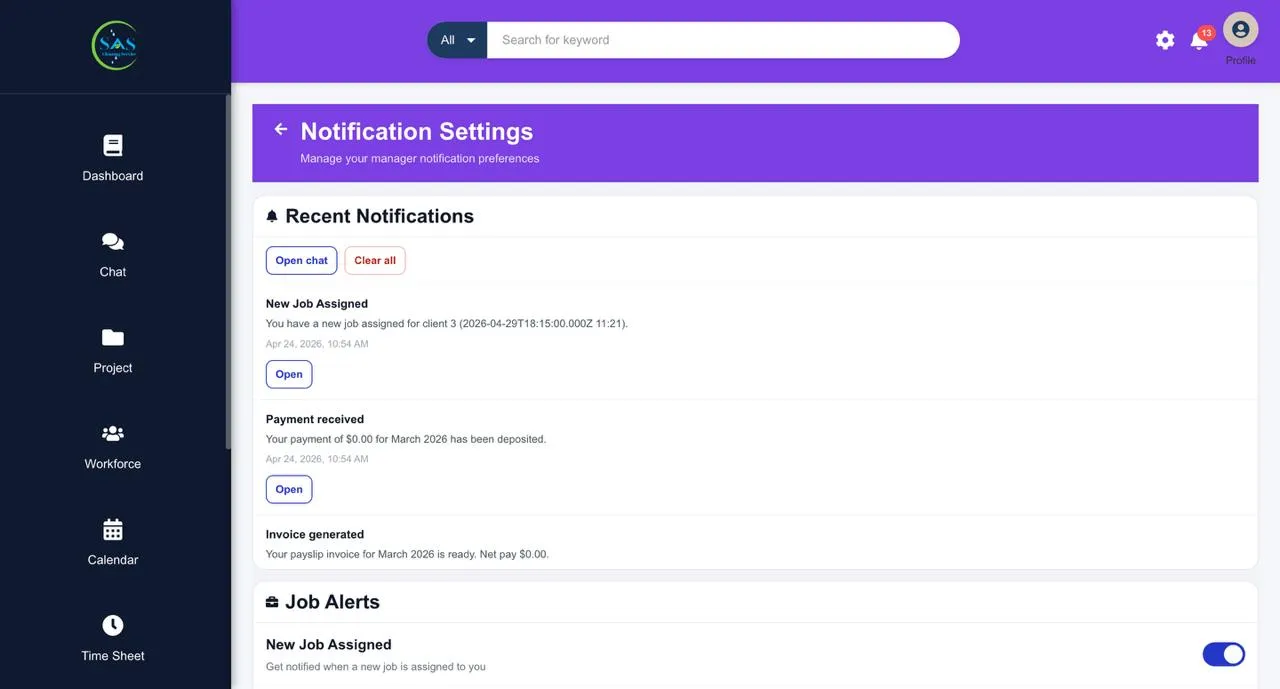
A. Job & Task Alerts
Receive notifications when:
- A new job is assigned
- A work report is submitted
- Tasks require approval
B. Supply & Operational Alerts
Stay updated about operational issues, including:
- Low stock alerts
- Damaged cleaning supplies
- Expiring products
These alerts help avoid disruptions during operations.
C. Team & Staff Reminders
Get reminders related to your team, such as:
- Leave requests
- Missing staff timesheets
- Contractor timesheet issues
This helps managers stay organized and maintain accurate records.
D. Financial Notifications
Receive alerts when:
- Payments are received
- Payslips are generated
- Payments are pending
This helps you monitor financial activity more efficiently.
4. Help & Support Services
If you need assistance, the portal provides several support options to help resolve issues quickly.
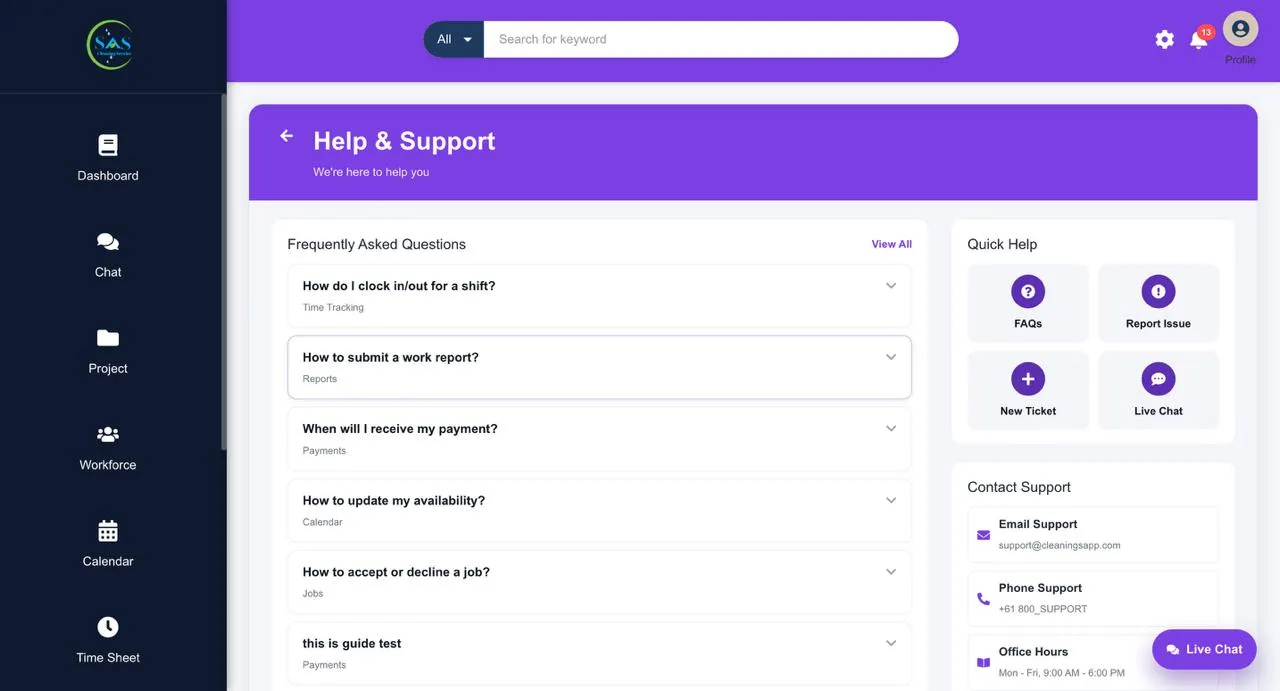
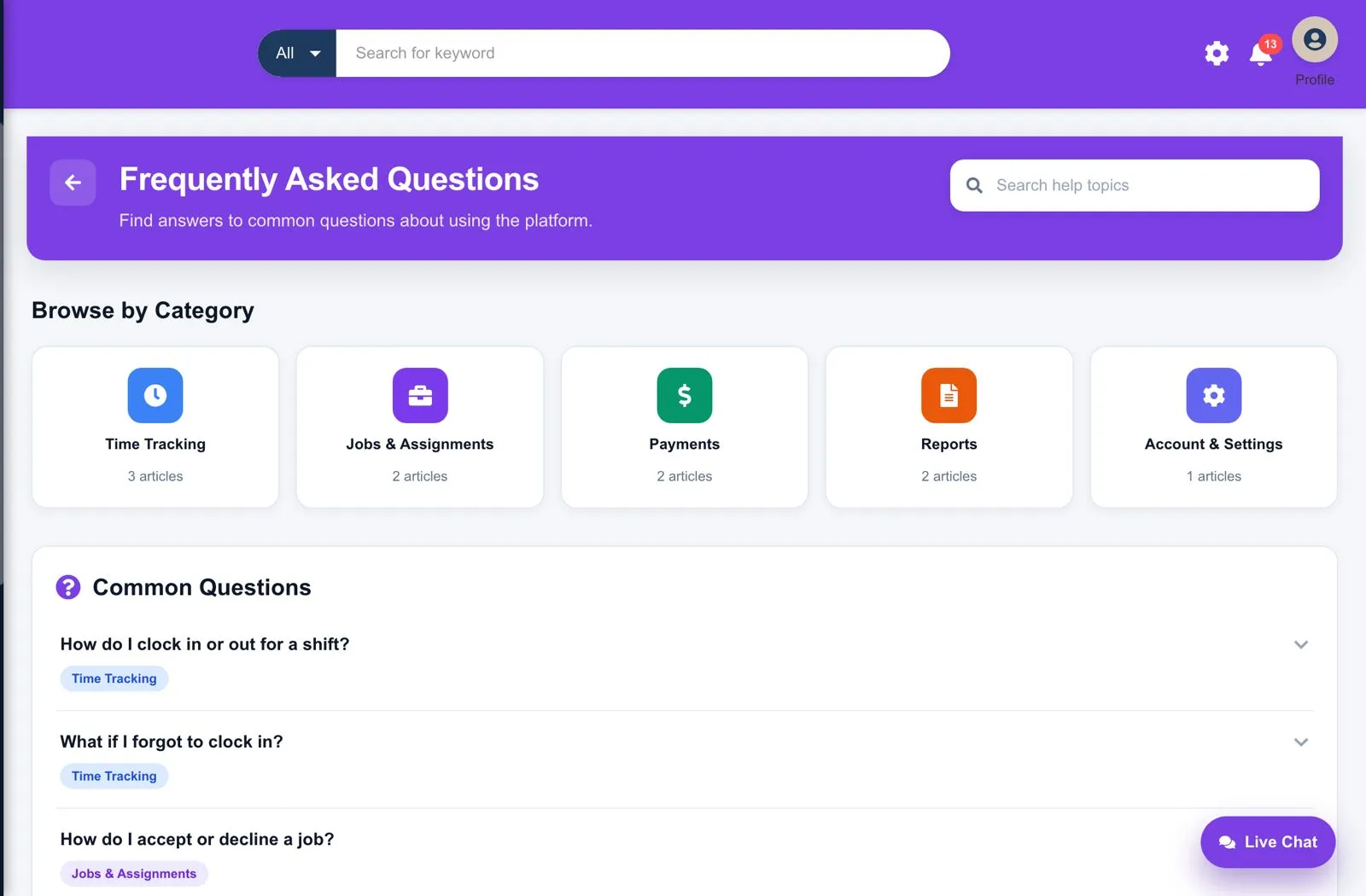
A. FAQ & Help Guides
Browse step-by-step help articles related to topics such as:
- Time tracking
- Payments
- Task management
- Team operations
These guides are designed to help you solve common issues quickly.
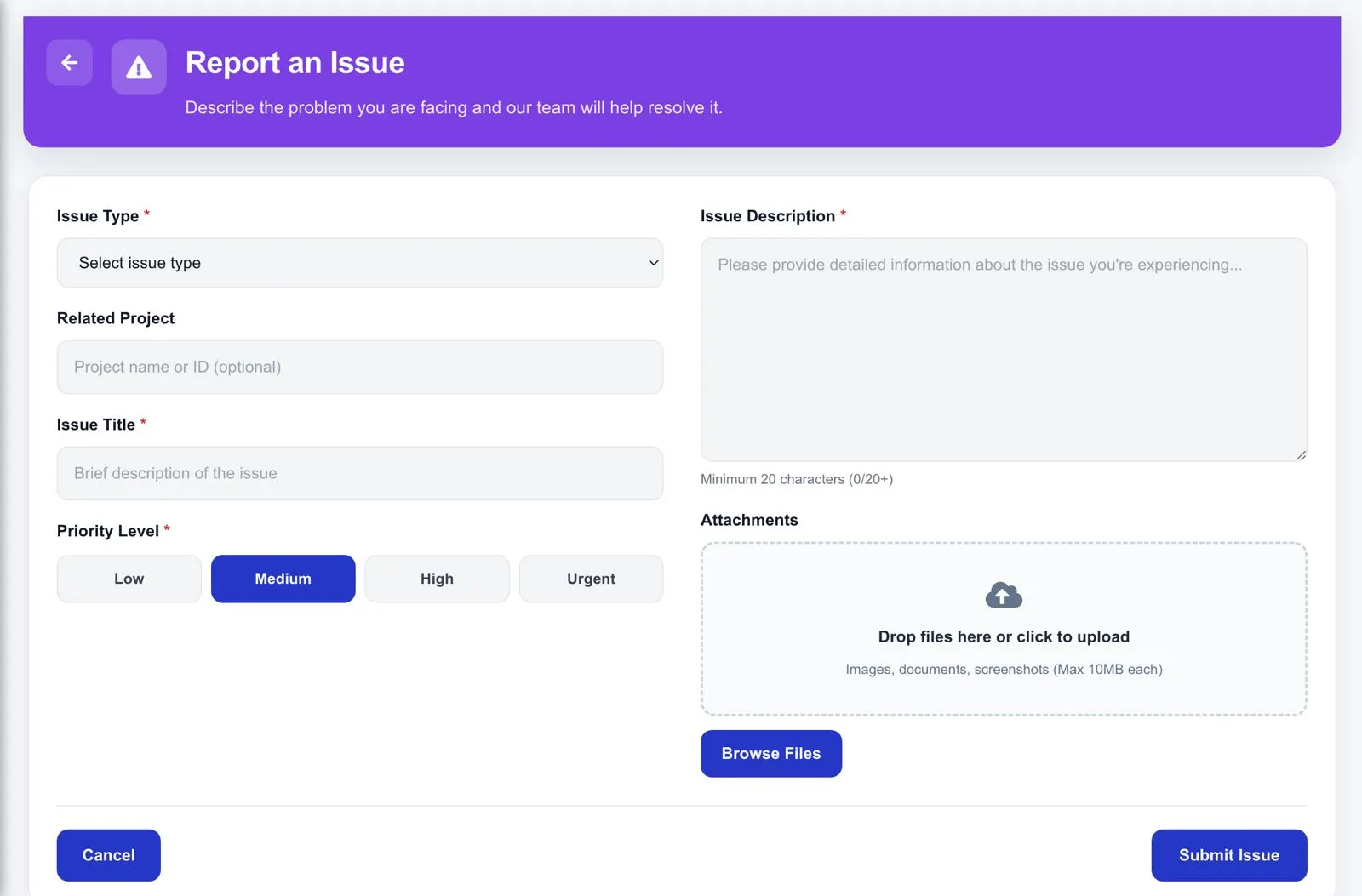
B. Report an Issue
If something is not working correctly, you can report it directly through the portal.
When Submitting an Issue, You Can:
- Select the issue type
- Set the priority level (Low to Urgent)
- Upload screenshots or supporting files
Providing detailed information helps the support team resolve issues faster.
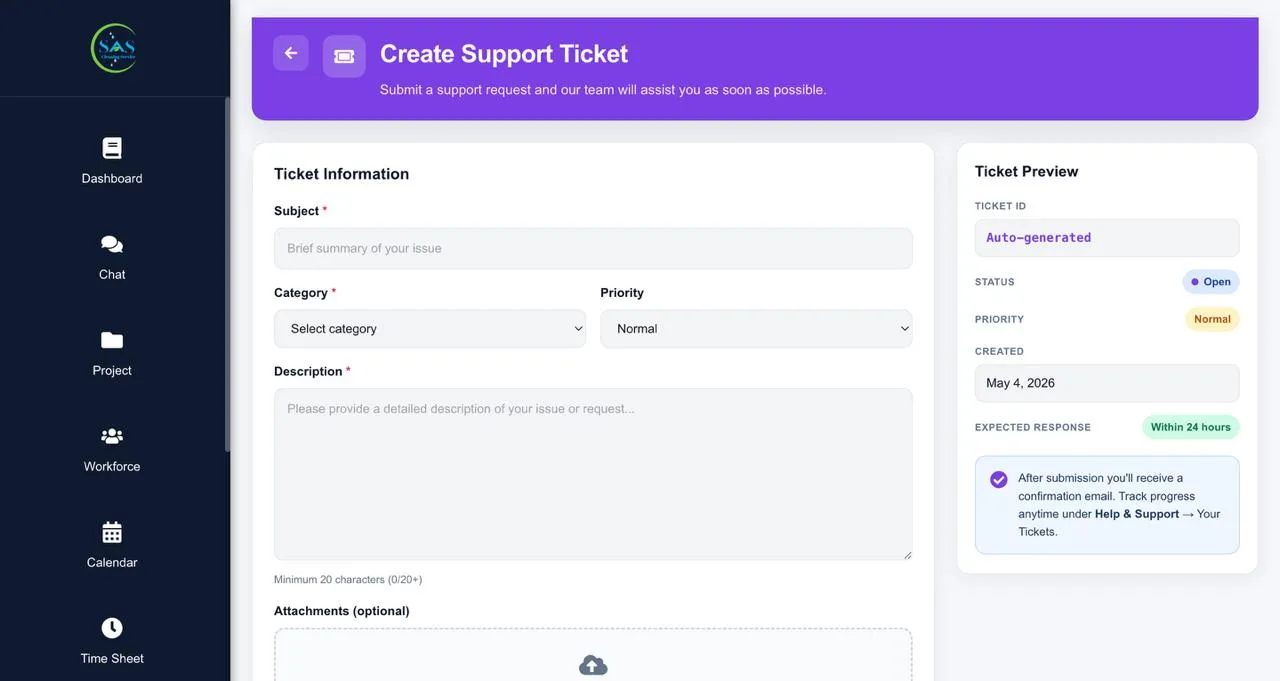
C. Support Tickets
You can create a support request directly from the system.
After Submission
- A unique ticket ID is generated
- You can track the support status
- Most responses are provided within 24 hours
Keep your ticket ID for future reference.
D. Direct Support Contact
For urgent situations, you can contact support directly using:
- Live Chat
- Email support
- Phone support
Contact details are available in the “Contact Support” section.
Recommended Best Practices
To keep your account secure and your portal organized:
- Keep your personal information updated
- Use a strong password
- Review logged-in devices regularly
- Enable Face ID or fingerprint login when available
- Upload updated certifications and documents
- Customize your dashboard for faster daily access
- Turn on only the notifications you need
- Report technical issues as soon as possible
Small updates and regular checks can help prevent future problems.
Conclusion
The Profile & Settings section helps you manage your account, personalize your experience, and keep your information secure — all in one place.
Using these tools, you can:
- Maintain accurate professional records
- Protect your account and login activity
- Customize your dashboard and notifications
- Access support quickly when needed
By keeping your settings updated and organized, you can work more efficiently and enjoy a smoother experience inside the Manager Portal.