Introduction
The Manager Portal in SAS Cleaning Suite is your daily control center for handling cleaning operations, staff coordination, scheduling, and work verification. This guide explains how managers can efficiently:
- Assign jobs
- Manage staff
- Track work progress
- Approve reports
- Handle schedules, timesheets, and payments.
This documentation is designed to be simple and easy to follow, even for non-technical users.
Overview of Manager Responsibilities
As a Manager, you are responsible for:
- Assigning jobs to cleaners and contractors
- Managing daily operations
- Monitoring staff performance
- Approving work reports and timesheets
- Handling leave requests
- Coordinating resources
- Ensuring smooth communication
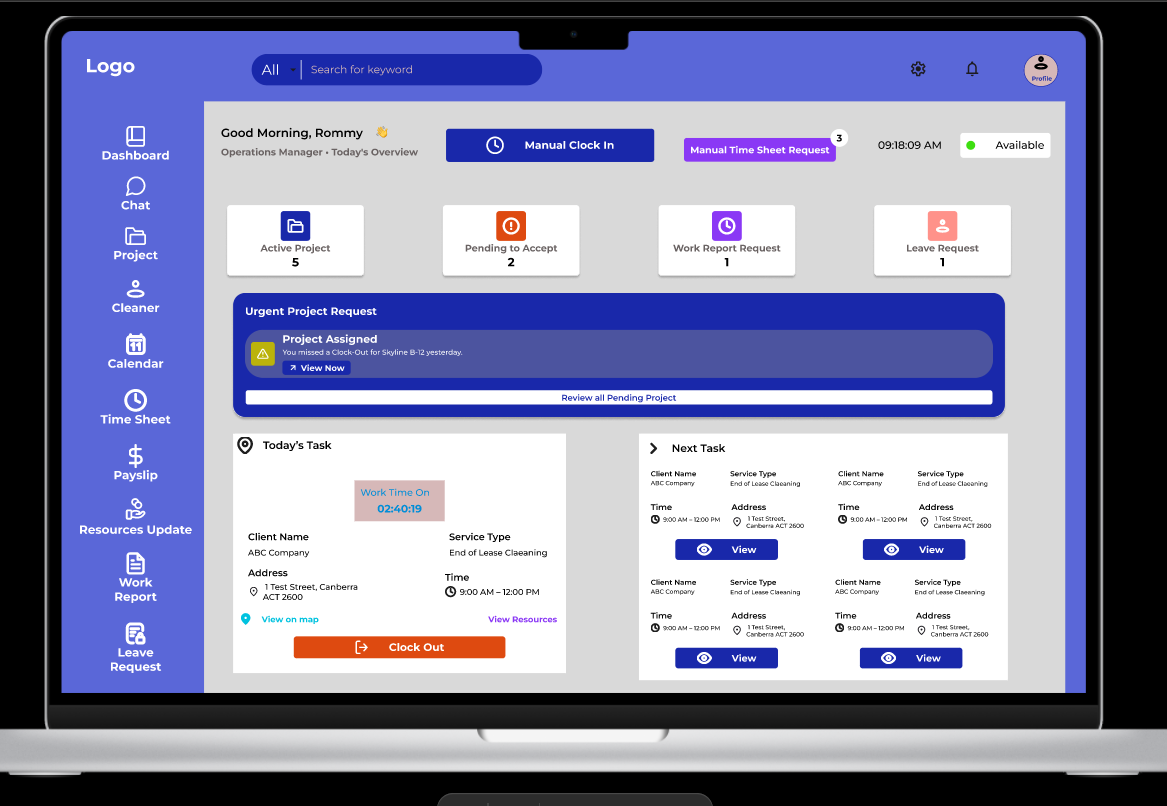
Manager Workflow Summary
Project Assigned by Admin → Manager Plans → Assigns Tasks → Team Executes → Reports Submitted → Manager Approves → Work Completed
1. How Managers Assign Jobs to Cleaners and Contractors
Path:
Dashboard → Projects → Assign Task
Steps:
- Open the assigned project from your dashboard
- Click on “Assign Task”
- Select who will handle the task:
- Cleaner
- Contractor
- Yourself
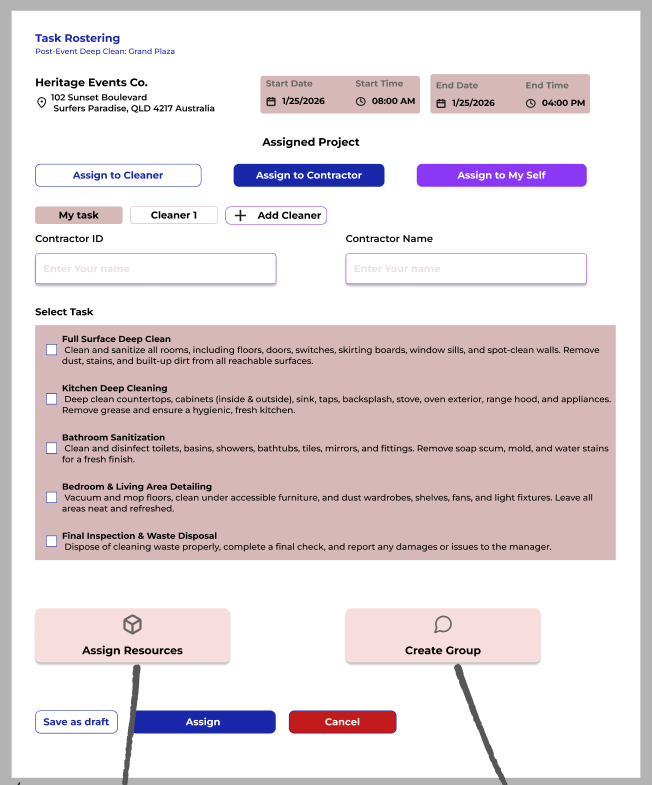
- Choose payment method:
- For Cleaners → Hourly basis
- For Contractors →
- Hourly OR
- Per Project
- Set:
- Date & Time
- Work location
- Task details
- Assign required resources (if needed)
- Confirm and assign the task
Important Notes:
- You can negotiate pricing with contractors before assigning
- If resources are not assigned, cleaners can request them later
- A group chat is automatically created for that task
2. How to Review and Approve Work Reports
Path:
Dashboard → Work Reports
Steps:
- Open the submitted report
- Review the following:
- Before & After Photos
- Task details completed
- Resources used
- Take action:
- Approve → Work completed
- Reject → Send back for correction
- Move to Inspection → If verification is needed
Why This Matters:
Ensures quality control
Prevents false reporting
Helps track resource usage
3. How to Manage Daily Cleaning Operations Smoothly
Managing daily operations involves planning, tracking, and communication.
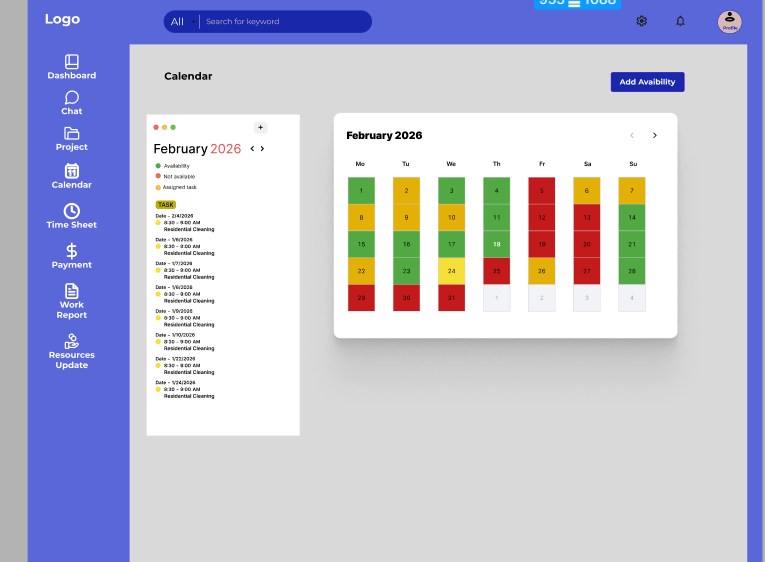
A. Using the Calendar
Path:
Dashboard → Calendar
Features:
- Green → Available staff
- Red → Not available
- Yellow → Assigned tasks
Actions You Can Take:
- View team availability
- Check upcoming tasks
- Add availability manually
- Plan shifts efficiently
B. Task Monitoring
- Track all assigned jobs in real-time
- Ensure tasks are completed on schedule
- Reassign tasks if needed
C. Communication
Use project group chat to:
- Give instructions
- Answer questions
- Discuss issues
4. How to Handle Staff Requests and Approvals
A. Leave Requests
Path:
Dashboard → Leave Requests
Steps:
- Open request
- Check:
- Leave type (Sick, Casual, Annual)
- Duration
- Available balance
- Take action:
- Approve
- Reject
- Approved requests are forwarded to Admin
B. Timesheet Requests
Path:
Dashboard → Timesheets → Requests
Steps:
- Review the manual time request
- Check reason (e.g., device issue)
- Approve or reject
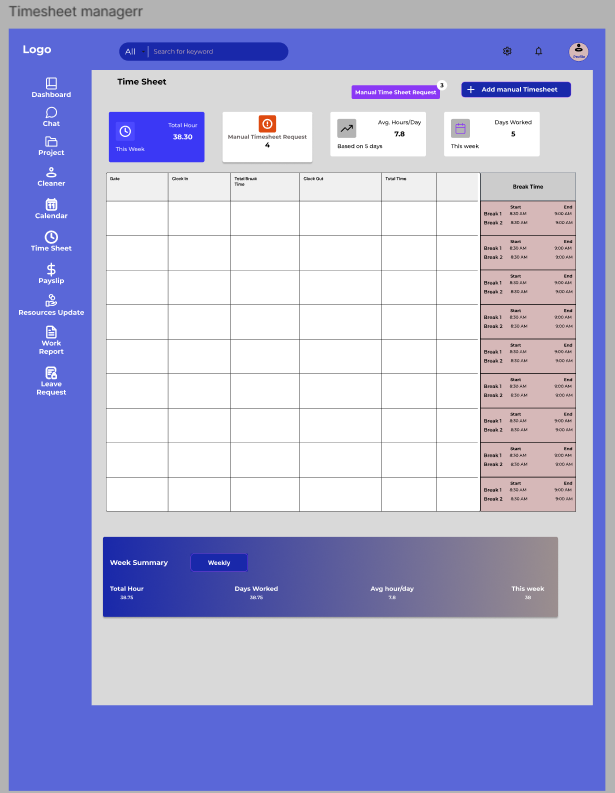
5. Time Management & Timesheet Tracking
Clock In / Clock Out
- Managers can manually clock in
- Tracks your working hours
Timesheet Overview
You can view:
- Total hours worked
- Average daily hours
- Total working days
Break Tracking
Monitor break times:
- Break start & end
Ensures compliance and accuracy
6. Financial Management & Payslips
Earnings Dashboard
View:
- Total earnings
- Pending payments
- Paid amount
Payslip History
Download past payslips
View:
- Tasks completed
- Hours worked
- Total earnings
Detailed Payslip Includes:
- Salary & wages
- Allowances
- Tax deductions
- Year-to-date (YTD) summary
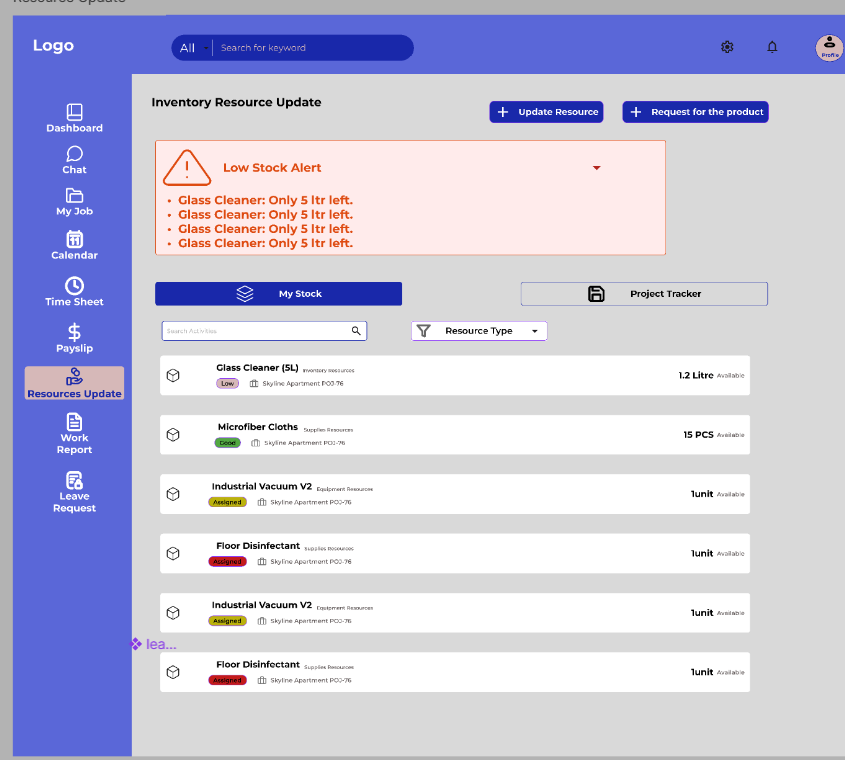
7. Resource Management
Managers can:
- Assign resources during task creation
- Track resource usage in reports
- Prevent overuse or loss
If Resources Are Missing:
- Cleaners can request them anytime
- You can approve and assign instantly
8. Staff Profile & Performance Tracking
Managers can:
- View cleaner profiles
- Monitor work history
- Track performance
- Assign tasks directly
9. Built-in Communication System
Each project includes:
- Group chat
- Real-time discussion
- Direct coordination between:
Manager
Cleaner
Contractor
10. End-to-End Daily Workflow Example
- Check calendar & availability
- Review assigned projects
- Assign tasks to the team
- Monitor progress
- Communicate via chat
- Review submitted reports
- Approve or request corrections
- Handle leave/timesheet requests
- Track daily performance
Best Practices for Managers
- Always assign resources clearly
- Review reports daily
- Communicate through chat instead of calls
- Check availability before assigning tasks
- Approve timesheets on time
- Monitor contractor agreements carefully
Conclusion
The Manager Portal in SAS Cleaning Suite helps you:
- Stay organized
- Manage teams efficiently
- Ensure high-quality service
- Track performance and finances
By following this guide, you can run daily operations smoothly without confusion.