Introduction
The Cleaner Portal in SAS
Cleaning Suite is your daily workspace for managing your tasks, tracking your working hours, communicating with your team, and submitting your work reports.
This guide will help you understand how to use each feature step by step in a simple way.
Overview of Cleaner Responsibilities
As a Cleaner, you will:
- Start and track your work using Clock In/Out
- View and complete assigned tasks
- Communicate with your manager and team
- Submit daily work reports
- Manage your availability and leave
- Track your payments and working hours
1. Dashboard (Your Daily Work Screen)
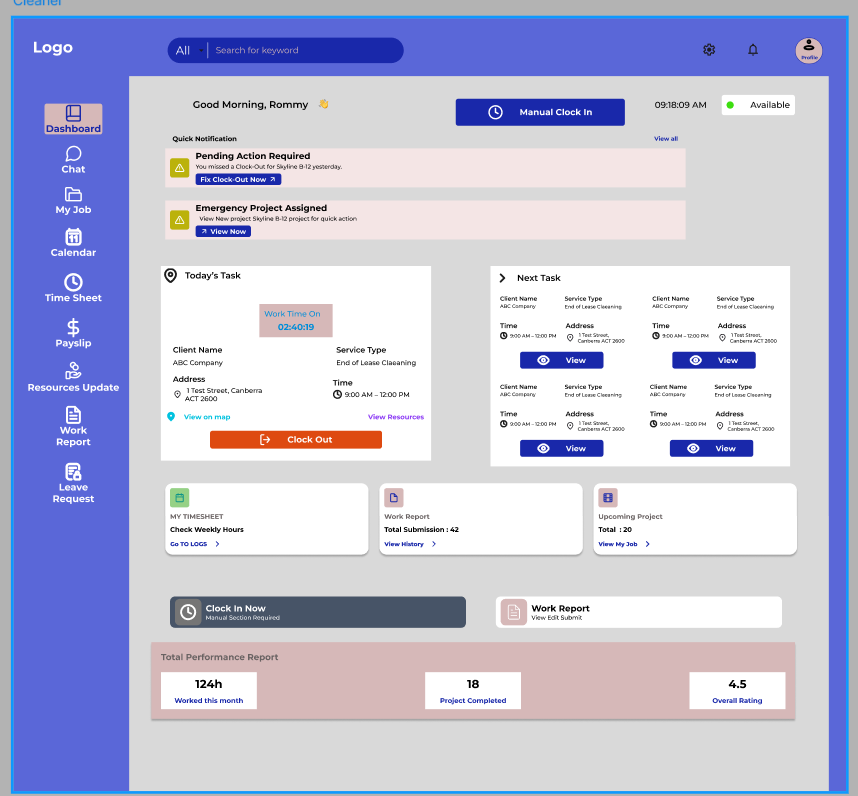
The Dashboard is your main home screen where you manage your daily work.
A. Clock In / Clock Out
How to Start Work:
- Click “Manual Clock In” to begin your shift
- Your Work Time On will start counting
How to End Work:
- Click “Clock Out” after finishing your job
B. Quick Notifications
You will see important alerts like:
- Emergency project assigned
- Missed clock-out reminders
- Pending actions
C. Today’s Task
View your current job details:
- Client name
- Location (address)
- Work timer (live tracking)
D. Performance Report
At the bottom of the dashboard, you can see:
- Total hours worked
- Completed jobs
- Your rating (stars)
2. Chat (Communication)
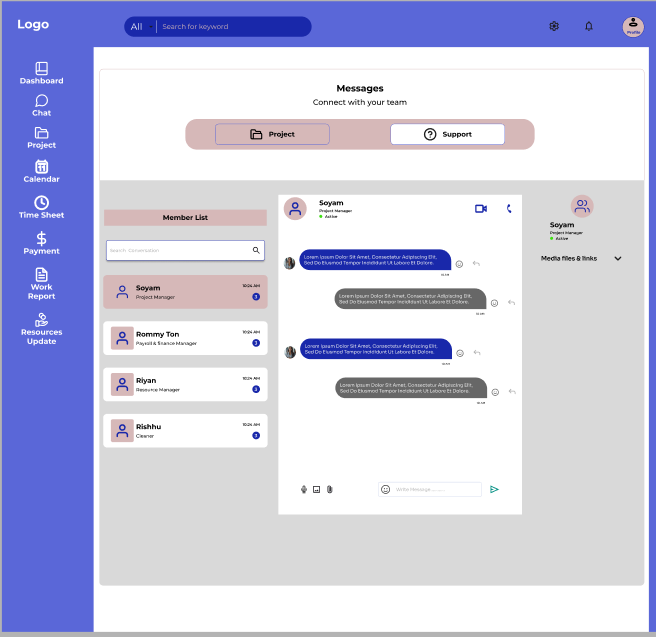
Stay connected with your team easily.
A. Project Group Chat
- Automatically added when a task is assigned
- Talk with:
- Manager
- Other cleaners
Use this for work-related discussions.
B. Direct Message
- Send private messages to your manager
- Ask questions or request help
3. My Job (Your Assigned Work)
This section shows all your tasks.
What You Can See:
- Job type (e.g., Deep Cleaning)
- Location
- Date & time
Actions You Can Take:
- Click “Start Task” when you arrive
- Click “View Details” for instructions
4. Calendar (Your Schedule)
Manage your availability and work schedule.
Add Availability
- Click “Add Availability”
- Mark days when you are available to work
Color Guide
- Green → Available
- Red → Not Available
- Yellow → Assigned work
5. Time Sheet (Work Hours Tracking)
Track your working hours for payment.
Weekly Summary
View:
- Total hours worked
- Average hours per day
- Total working days
Manual Timesheet
- Use “Add Manual Timesheet” if:
- You forgot to clock in/out
- System didn’t record your shift
6. Payslip (Your Earnings)
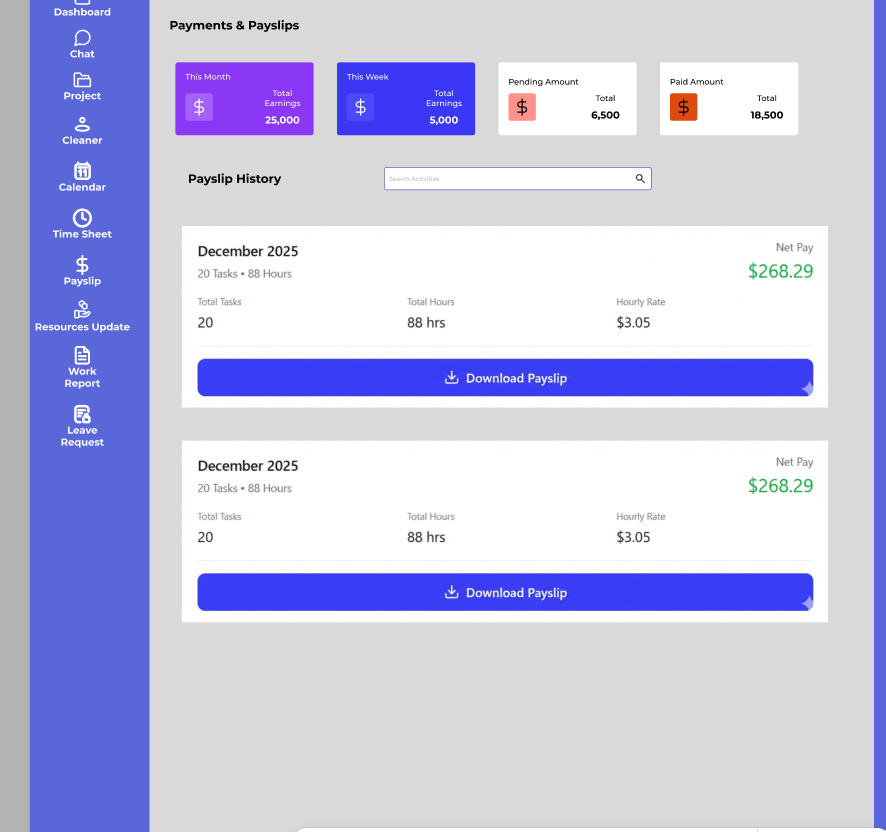
Track your salary and payments.
Payment Overview
View:
- Total earnings
- Weekly/monthly income
- Pending payments
Payslip History
- See past payslips
- Check:
- Hours worked
- Pay amount
Click “Download Payslip” to save it.
7. Resources Update (Supplies Management)
Manage cleaning materials and equipment.
Low Stock Alert
- Red warning shows items that are running low
Stock Tracking
- My Stock → Your total available items
- Project Tracker → Items used for specific jobs
Update Resource
- Click “Update Resource”
- Enter quantity used
- Upload photo if needed
Request Product
- Click “Request” if supplies are not enough
- Manager will review and provide items
8. Work Report (Submit Your Work)
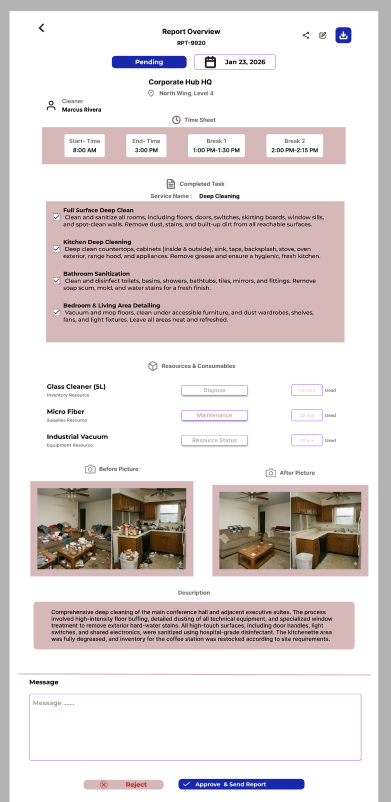
After completing your job, you must submit a report.
Steps to Submit Report:
- Fill task details
- Add resources used
- Write completed work
- Upload Before & After photos
Report Status
You can track:
- Pending → Waiting for approval
- Approved → Accepted by manager
- Feedback → If changes are needed
9. Leave Request (Time Off)
Request leave easily through the system.
Send Request
- Click “Send Leave Request”
- Fill the form
Leave Options
- Type:
- Sick Leave
- Casual Leave
- Other
- Duration:
- Single day
- Multiple days
- Specific hours
Track Status
Check if your request is:
- Pending
- Approved
- Rejected
Click “View Details” for manager feedback.
Daily Workflow Example
- Clock In from the dashboard
- Check the assigned job
- Go to the location and start the task
- Communicate if needed via chat
- Use resources and update if required
- Clock out after finishing
- Submit work report
- Check the timesheet and updates
Best Practices for Cleaners
✔ Always clock in and clock out properly
✔ Check job details before starting
✔ Upload clear Before/After photos
✔ Report resource usage correctly
✔ Request supplies early if needed
✔ Submit reports on time
✔ Communicate through chat for quick help
Conclusion
The Cleaner Portal helps you:
✔ Manage your daily work easily
✔ Track your time and payments
✔ Communicate with your team
✔ Submit and verify your work
By following this guide, you can complete your tasks smoothly and professionally.