Client Portal – Complete Support Guide
Introduction
The Client Portal in SAS Cleaning Suite is your personal workspace for managing cleaning services, tracking projects, reviewing reports, communicating with the support team, and managing invoices — all from one convenient place.
This guide is designed to be simple, clear, and easy to follow, even if you are using the portal for the first time.
With the Client Portal, you can stay updated on your cleaning services anytime without needing to make phone calls or send emails for every update.
What You’ll Learn
In this guide, you’ll learn how to:
- Manage your account and profile
- Request new cleaning services
- Review and approve quotations
- Track active cleaning projects
- View invoices and payment status
- Review work reports and before/after photos
- Communicate with the support team
- Track upcoming cleaning schedules
How the Service Workflow Works
Most services inside the Client Portal follow this workflow:
Service Request → Quotation Received → Quotation Approved → Project Scheduled → Cleaning Completed → Report Uploaded → Invoice Generated → Payment Completed
Understanding this process will help you follow your service progress more easily from start to finish.
1. Dashboard (Your Main Overview Screen)
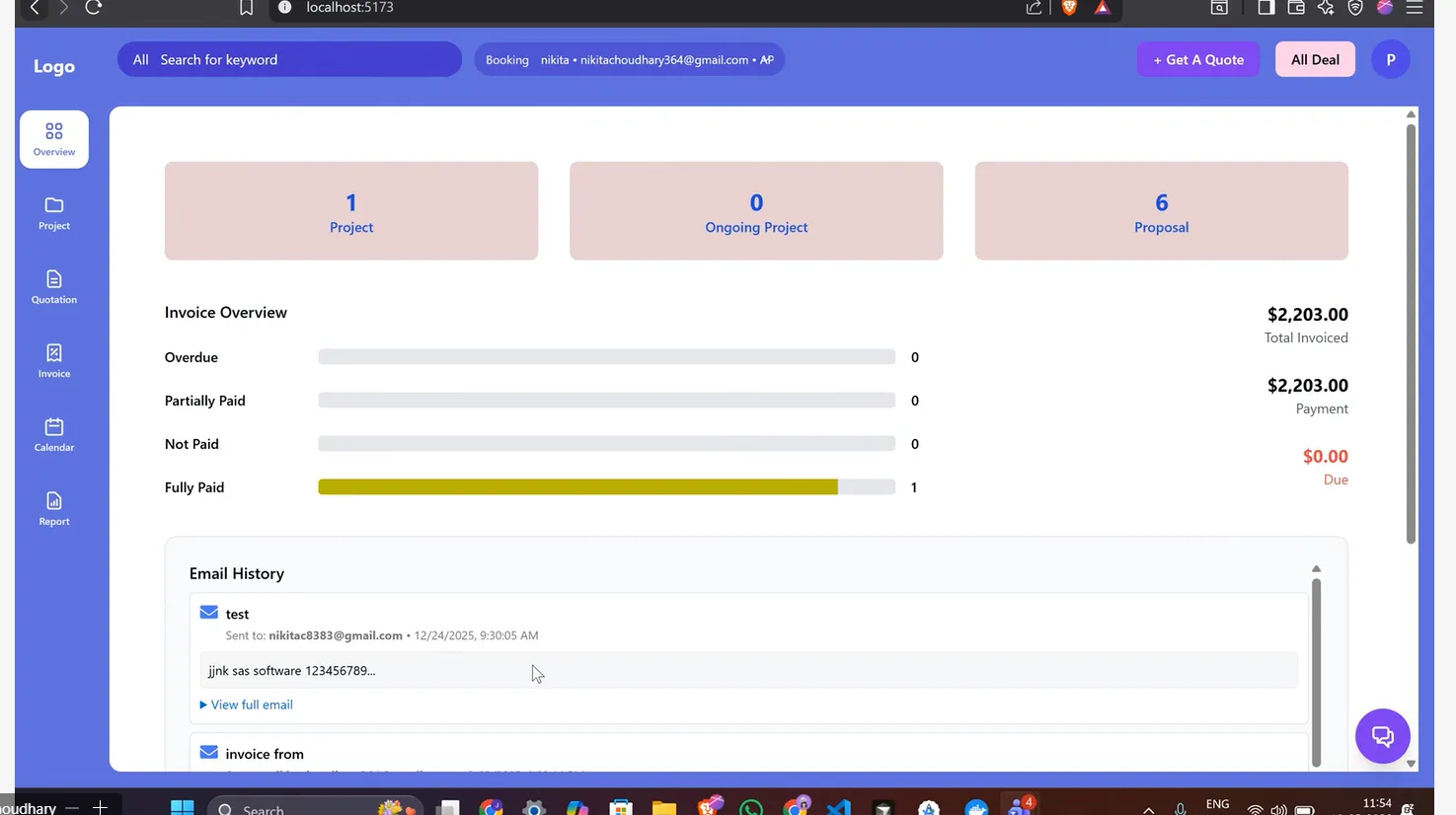
The Dashboard is the first screen you see after logging in. It gives you a quick summary of your account, projects, invoices, and recent updates.
A. Account Overview
You can quickly view:
- Total projects
- Pending invoices
- Recent activities
- Service updates
This helps you stay informed at a glance.
B. Quick Access Links
The dashboard also provides shortcuts to commonly used sections, including:
- Recent work reports
- Active quotations
- Current projects
This makes it faster to find important information.
C. Communication History
View a timeline of updates and notifications from the SAS Cleaning Suite team.
Examples include:
- Project updates
- Invoice notifications
- Appointment reminders
- Service announcements
Keeping communication in one place makes it easier to track conversations and updates.
2. My Profile (Manage Your Account)
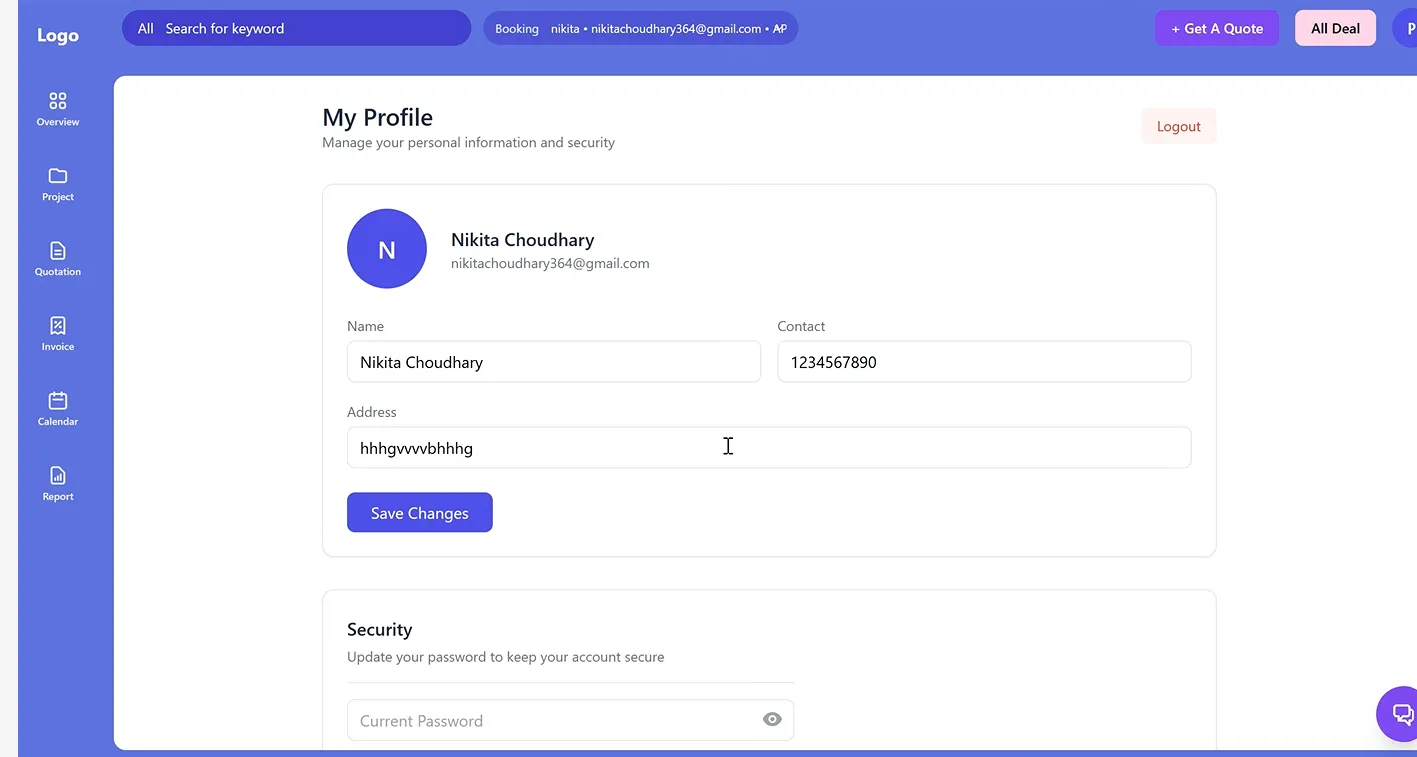
The My Profile section allows you to manage your personal details and account settings.
A. Personal Information
You can view and manage details such as:
- Full name
- Phone number
- Email address
- Service address
Keeping your information updated helps avoid scheduling or communication issues.
B. Edit Your Profile
To update your details:
- Open “My Profile”
- Click “Edit Profile”
- Update your information
- Click Save
You can also add an additional contact number if needed.
C. Password & Security
To keep your account secure:
- Open “Security & Password”
- Enter your new password
- Save your changes
Using a strong password helps protect your personal and billing information.
3. Request a Cleaning Service
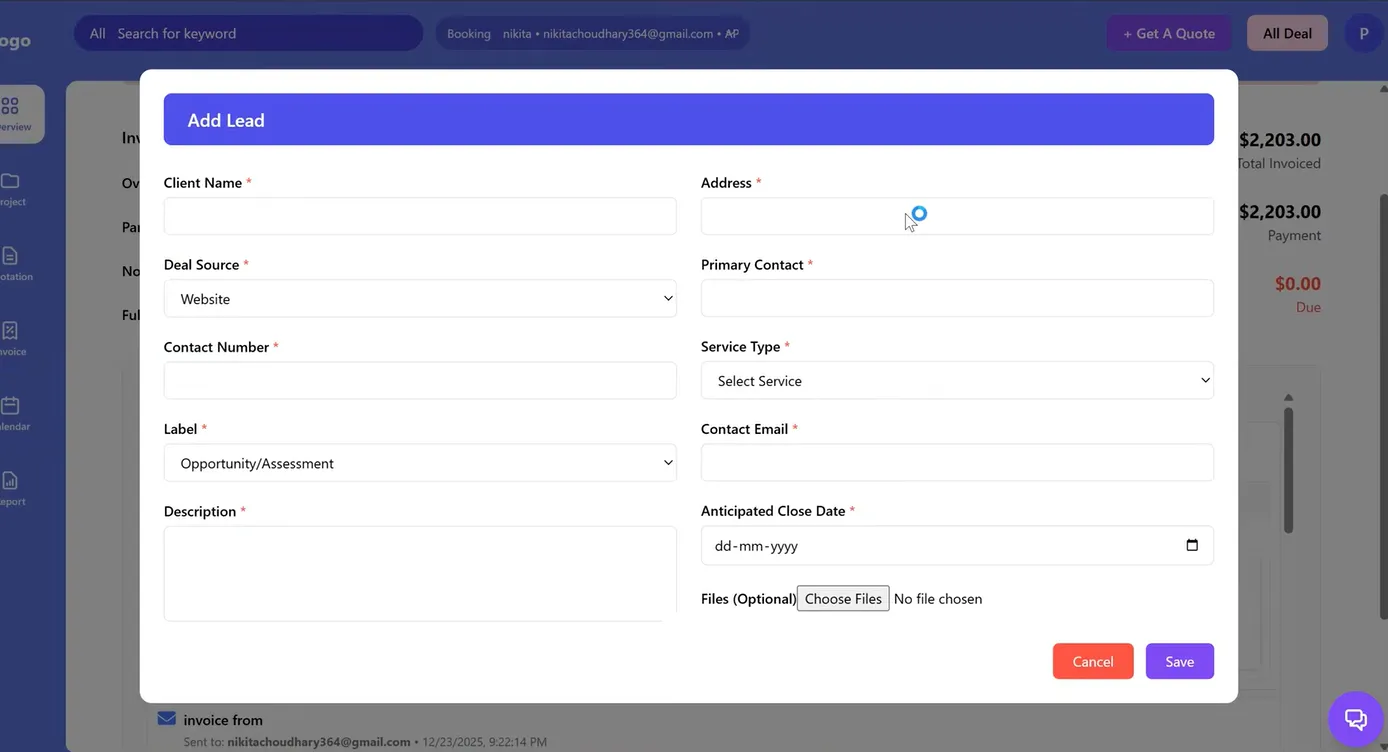
The Request Service section allows you to submit new cleaning requests directly through the portal.
This is faster and more convenient than calling or emailing manually.
A. Submit a New Service Request
Steps to Create a Request
- Open “Request Service” or “Lead Form”
- Click “New Request”
- Enter your service details
- Submit the request
The SAS Cleaning Suite team will then review your request.
B. Add Service Details
You can include information such as:
- Service type
- Preferred cleaning date
- Property details
- Special instructions
- Photos of the area (if needed)
Providing clear details helps the cleaning team prepare properly before arrival.
C. Track Request Status
After submitting your request, you can monitor its progress directly from the portal.
Possible statuses may include:
- Pending
- Under Review
- Quotation Sent
This helps you stay informed throughout the approval process.
4. Quotations (Review & Approve Pricing)
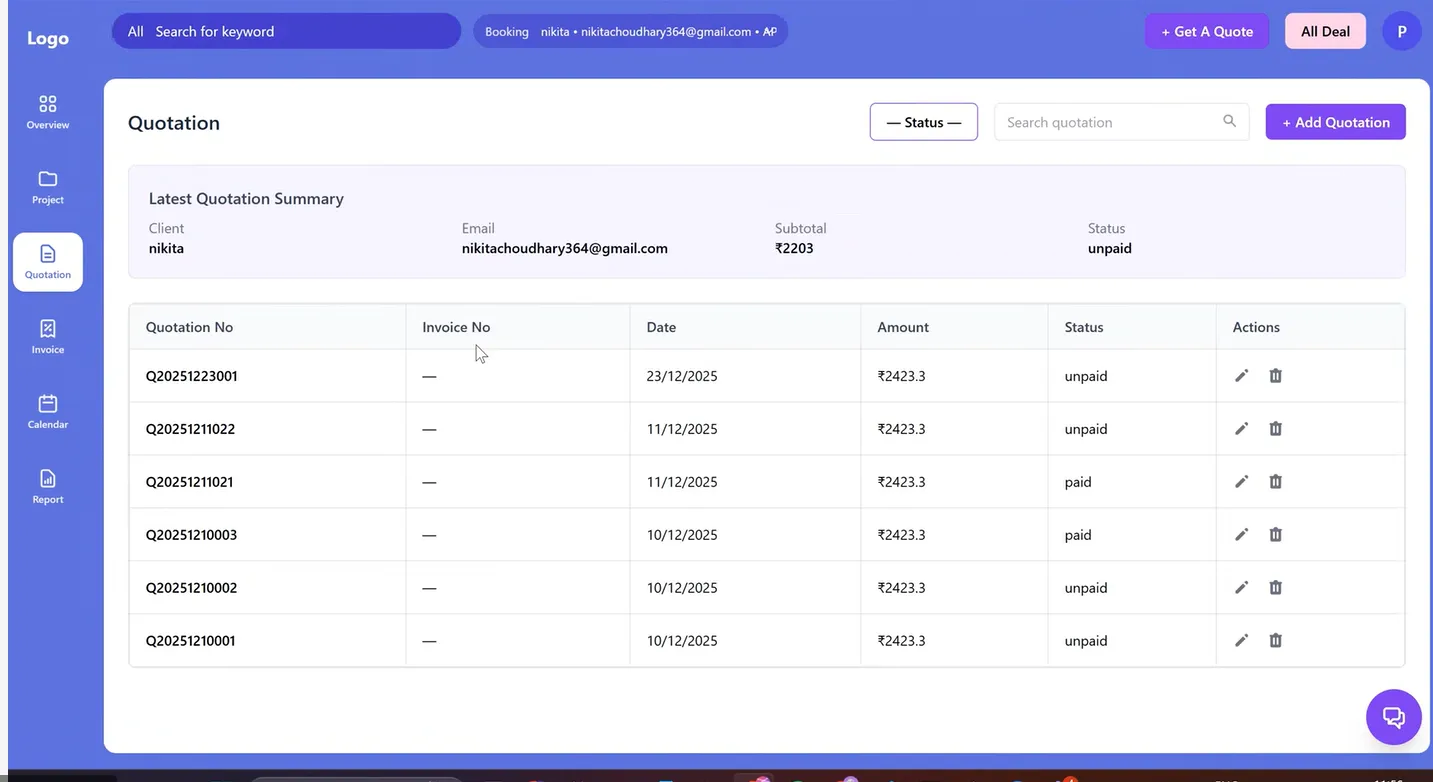
The Quotations section allows you to review pricing and service details before work begins.
A. View Quotations
You can review:
- Service details
- Pricing information
- Scope of work
- Material details
Always review quotations carefully before approval.
B. Quotation History
If quotation updates or changes are made during discussions, all versions remain visible inside the portal.
This helps maintain transparency and keeps all pricing discussions organized.
C. Accept a Quotation
To approve a quotation:
- Open the quotation
- Review all details carefully
- Click “Accept”
Once accepted, the cleaning project moves into scheduling and operations.
5. Projects (Track Cleaning Work)
The Projects section helps you monitor all active and completed cleaning services related to your property.
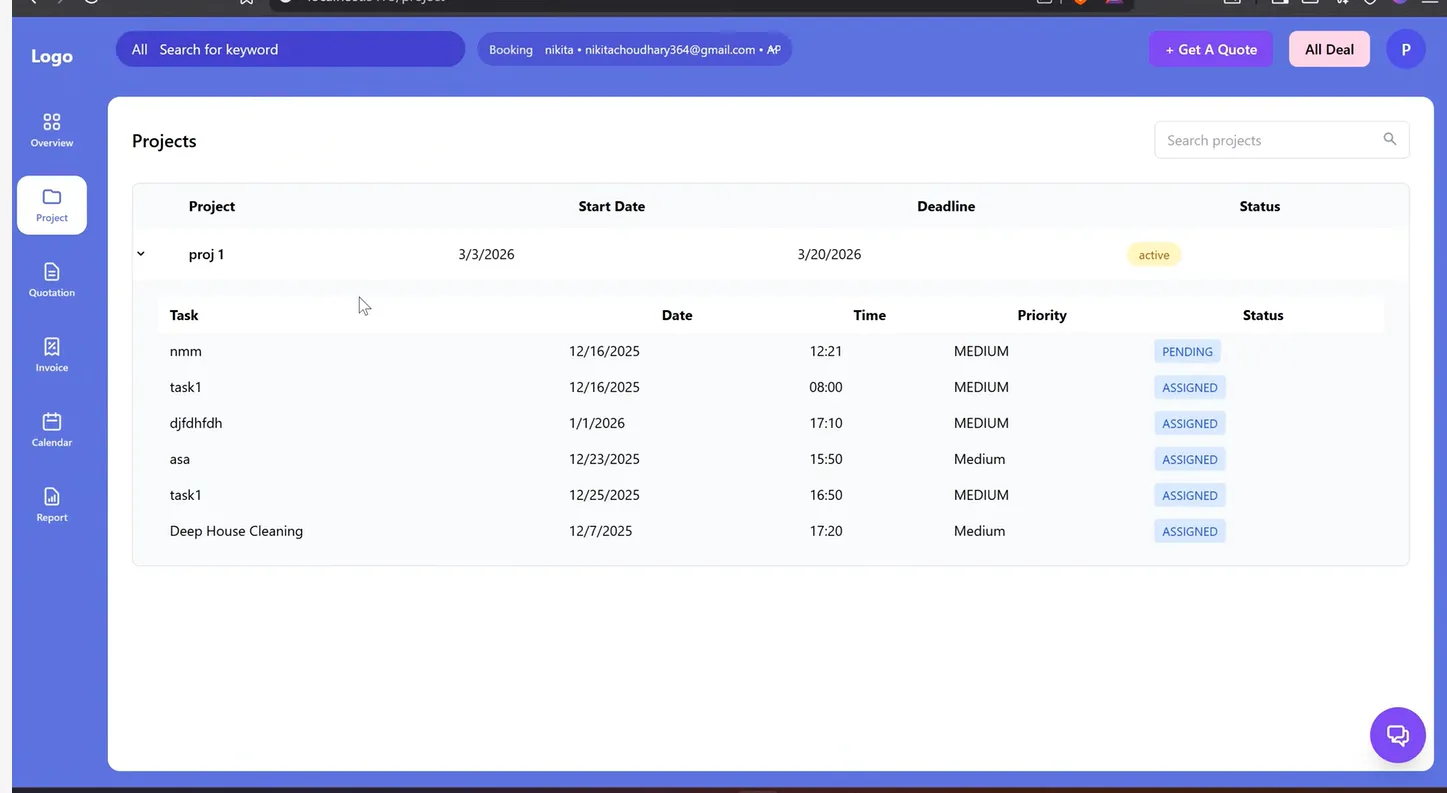
A. Project Status
You can track the progress of your projects using statuses such as:
- Pending
- In Progress
- Completed
This allows you to follow work progress in real time.
B. Assigned Team
You can see which team members are assigned to your service, including:
- Managers
- Supervisors
- Cleaning staff
This helps you know who is responsible for your project.
C. Project History
The portal stores records of completed cleaning jobs for your property.
This creates a long-term maintenance and service history that you can review anytime.
6. Invoices (Payments & Billing)
The Invoices section helps you manage all billing and payment records in one place.
A. Invoice List
View all invoices created from approved quotations and completed services.
B. Payment Status
Invoices may display statuses such as:
- Unpaid
- Partially Paid
- Paid
This makes it easy to monitor outstanding balances.
C. Download Invoices
You can:
- Open invoices
- Download PDF copies
- Save invoices for accounting or tax records
Keeping copies of invoices is recommended for future reference.
7. Calendar (Cleaning Schedule)
The Calendar helps you track upcoming appointments and scheduled cleaning visits.
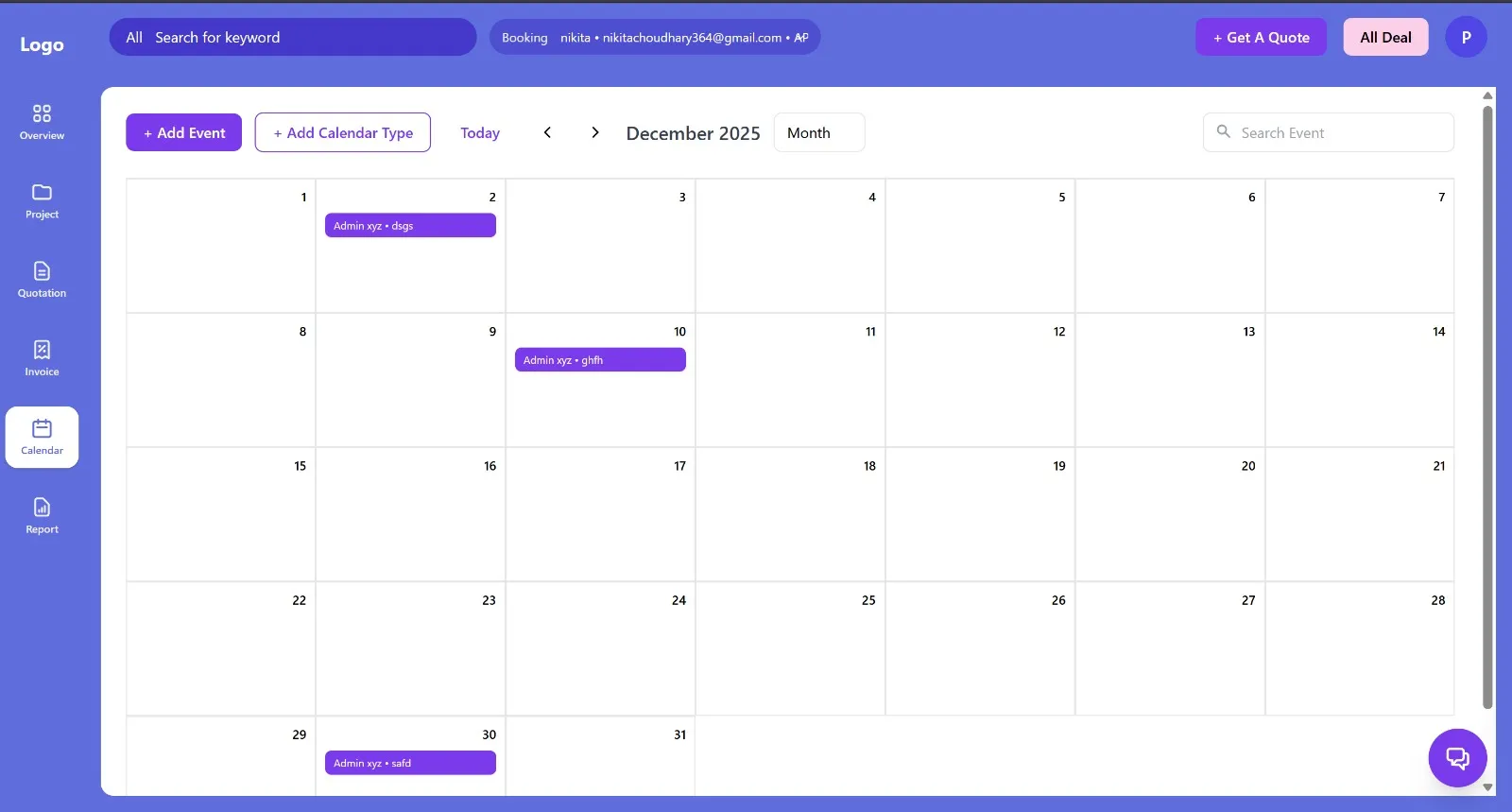
A. Appointment Tracking
You can view:
- Upcoming cleaning dates
- Scheduled service times
- Team visit schedules
The calendar is available in:
- Monthly view
- Weekly view
B. Prepare for Scheduled Visits
Use the calendar to ensure:
- Your property is accessible
- Required areas are ready
- The cleaning team can enter without delays
Preparing in advance helps services run more smoothly and efficiently.
8. Reports (Completed Work Reports)
The Reports section gives you detailed proof and summaries of completed cleaning work.
A. Work Summary
After a service is completed, the cleaning team uploads a report that may include:
- Completed tasks
- Work summaries
- Staff notes
This helps you review what was completed during the visit.
B. Before & After Photos
You can review:
- Before cleaning photos
- After cleaning photos
- Completed task checklists
This provides visual confirmation of completed work quality.
C. Permanent Report History
All reports remain stored in your portal for future reference.
This helps you maintain a complete history of cleaning and property maintenance services.
9. Help & Support
The Help & Support section allows you to contact the SAS Cleaning Suite support team quickly whenever you need assistance.
Live Chat Support
If you have questions about your service, projects, invoices, schedules, or portal access, you can use the built-in Live Chat feature.
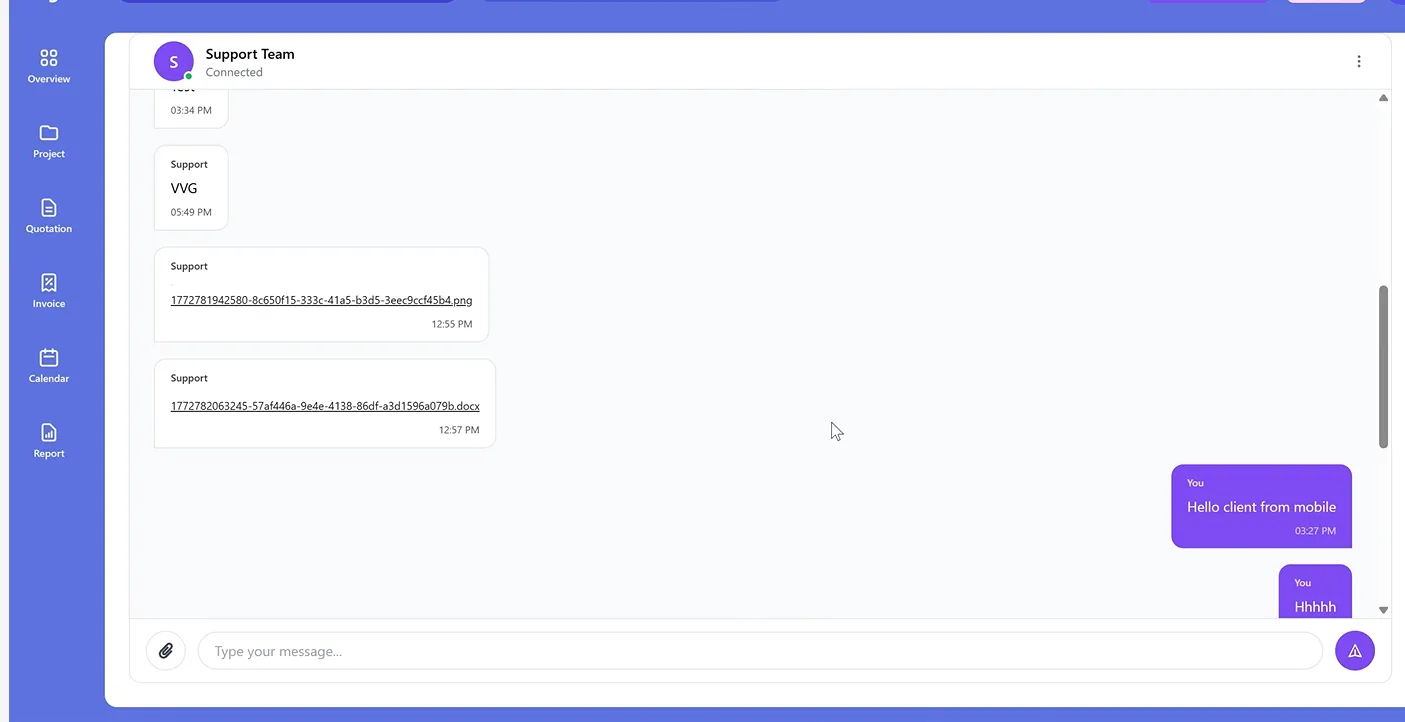
What You Can Do in Live Chat
You can:
- Ask questions about cleaning services
- Request project or schedule updates
- Discuss invoices or payments
- Report concerns or issues
- Get quick assistance from the support team
How to Use Live Chat
- Open the “Help & Support” section
- Click “Live Chat”
- Type your message
- Send your request
A support team member will respond as soon as possible.
Why Use Live Chat?
Live Chat helps you:
- Get faster responses
- Communicate directly with support staff
- Resolve issues quickly
- Stay updated without phone calls or emails
10. Logout (Securely End Your Session)
Always log out after using the portal, especially when using a shared or public device.
To Log Out
- Click your profile icon
- Select “Logout”
Logging out helps protect your personal and financial information.
Daily Workflow Example
Here’s an example of a typical client workflow:
- Log in to the Client Portal
- Review dashboard updates and notifications
- Submit new service requests if needed
- Review and approve quotations
- Track active cleaning projects
- Review invoices and payment status
- Check completed work reports and photos
- Contact support through live chat if needed
- Log out securely after use
Following a routine helps you stay organized and informed about your services.
Best Practices for Clients
To get the best experience from the Client Portal:
- Keep your profile and contact details updated
- Review quotations carefully before approval
- Check schedules regularly
- Download invoices for your records
- Review before-and-after photos after service completion
- Use Live Chat for faster support
- Log out after using shared devices
These small habits help improve communication and service management.
Conclusion
The Client Portal in SAS Cleaning Suite makes it easy to manage your cleaning services from one organized platform.
Using the portal, you can:
- Request services anytime
- Track projects and appointments
- Review completed work reports
- Manage invoices and payments
- Communicate directly with the support team
By following this guide, you can stay informed, manage services more efficiently, and enjoy a smoother and more organized cleaning service experience.