Admin Profile & Account Settings Guide
Introduction
The Profile & Account Settings section in the Admin Portal helps you manage your personal account, security settings, branch information, team access, notifications, and support tools — all from one place.
This guide is designed to be simple and easy to follow, even for users with little or no technical experience.
By using these settings properly, you can keep your account secure, manage your team efficiently, and customize how you use the SAS Cleaning Suite platform.
What You Will Learn
In this guide, you will learn how to:
- Manage your admin profile and personal information
- View login history and account activity
- Manage branches and staff access
- Control account security and sessions
- Customize notifications and preferences
- Add and manage team members
- Access support and help services
Complete Workflow Overview
Profile Setup → Security Settings → Team & Branch Management → Notification Preferences → Activity Monitoring → Support & Help
1. My Profile (Your Personal Admin Dashboard)
The My Profile section is your personal workspace where you can manage your account information and track your activity.
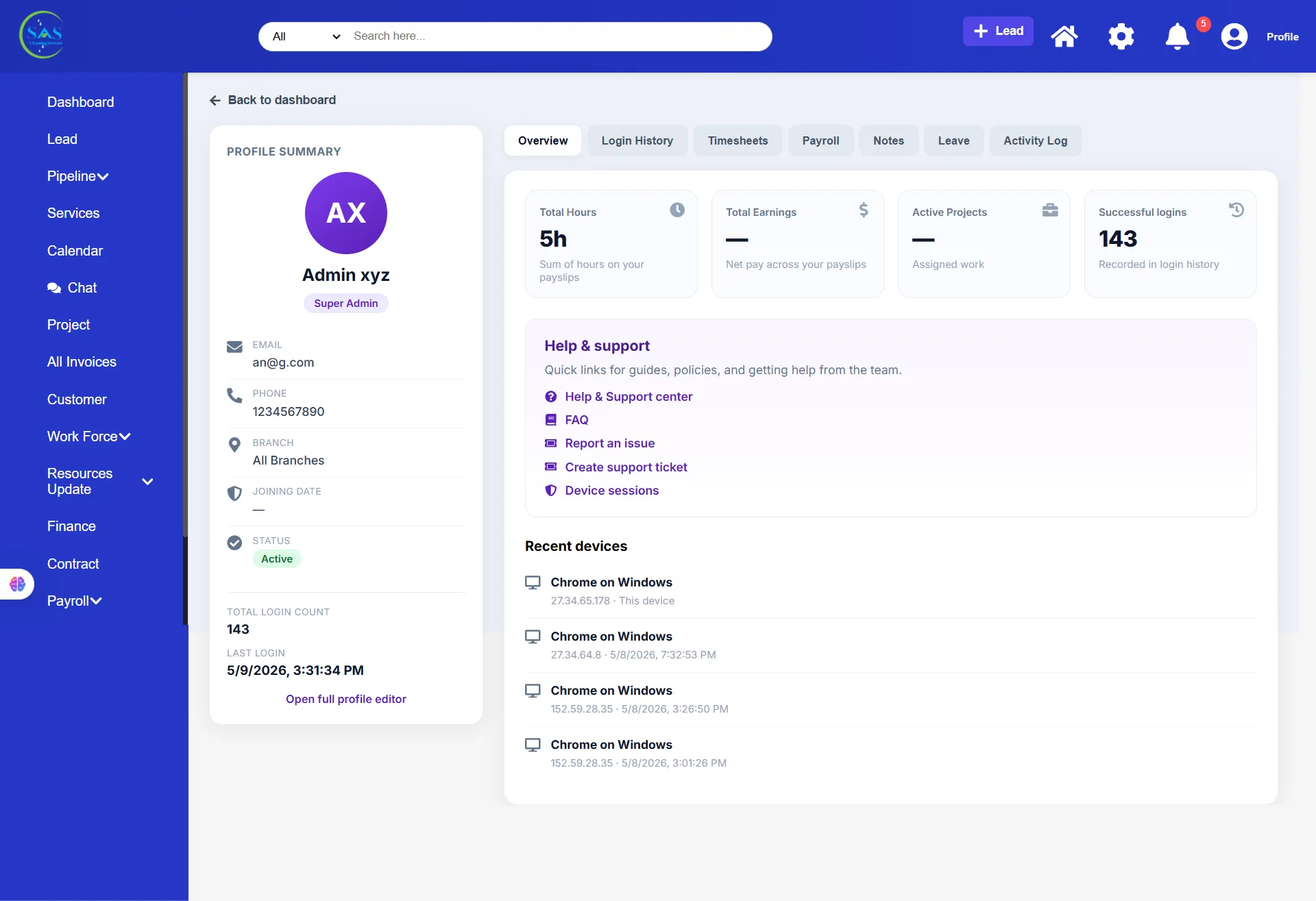
A. Profile Summary
Here you can view your main account details, including:
- Full Name
- Role (Example: Super Admin)
- Email Address
- Phone Number
- Assigned Branch
These details help identify your account inside the system.
B. Activity Status
You can quickly monitor your account activity, including:
- Total Login Count
- Last Login Date & Time
This helps you track recent account access.
C. Detailed Information Tabs
Your profile includes multiple sections for better organization.
Overview
Shows a quick summary of your account status and recent activity.
Login History
Displays a list of all previous logins with time and access details.
Timesheets & Payroll
View your own:
- Working hours
- Payroll information
- Payment status
Leave
Manage your own leave requests and leave history.
Activity Log
Track actions performed from your account, such as:
- Lead updates
- Project approvals
- Team changes
This improves transparency and account tracking.
D. Edit Your Profile
To update your information:
- Click “Open Full Profile Editor”
- Update your details
- Save changes
You can update:
- Contact information
- Profile photo
- Password
2. Branch Management
The Branch Management section helps you manage company locations and operational branches.
A. View Branch List
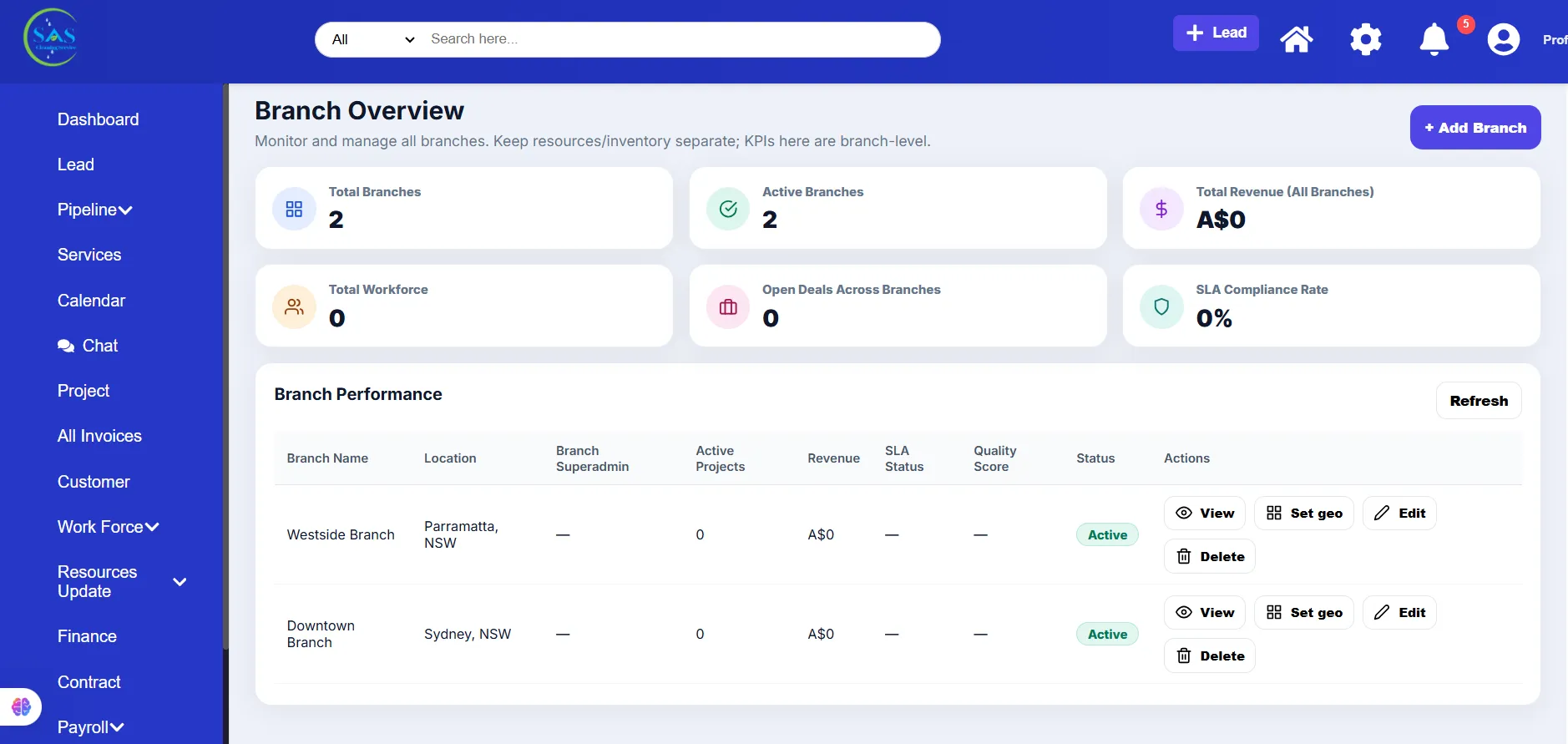
You can see all the company branches in one place.
Information may include:
- Branch name
- Address
- Status
- Assigned teams
B. Add or Edit Branches
You can:
- Add a new branch
- Edit branch details
- View full branch information
This helps keep business operations organized.
C. Geo-Fencing Setup
Geo-fencing helps verify that field staff are working at the correct location.
Admins can:
- Set branch boundaries
- Define allowed work zones
- Improve attendance accuracy
This is especially useful for mobile clock-in tracking.
3. Role Profiles & Team Access
This section helps you monitor user roles and permissions across the company.
A. Member List
View all system users, including:
- Admins
- Managers
- Cleaners
- Contractors
You can also view:
- Assigned roles
- Account status (Active/Disabled)
B. Permissions Monitoring
Use this section to verify:
- Who can access specific features
- Who can edit business information
- Which users have restricted access
This helps improve system security and control.
4. Active Sessions & Security Monitoring
This section helps protect your account by monitoring active logins.
A. Live Sessions
You can view all devices currently logged into your account, such as:
- Chrome on Windows
- Mobile devices
- Tablets or laptops
B. Login Activity Details
You can review:
- Login time
- IP address
- Device details
This helps identify unusual activity.
C. End Unknown Sessions
If you notice an unfamiliar device:
- Select the session
- Click “End Session” or “Revoke Access”
This immediately logs the device out for security protection.
5. Account Settings
Customize your security, preferences, and integrations from this section.
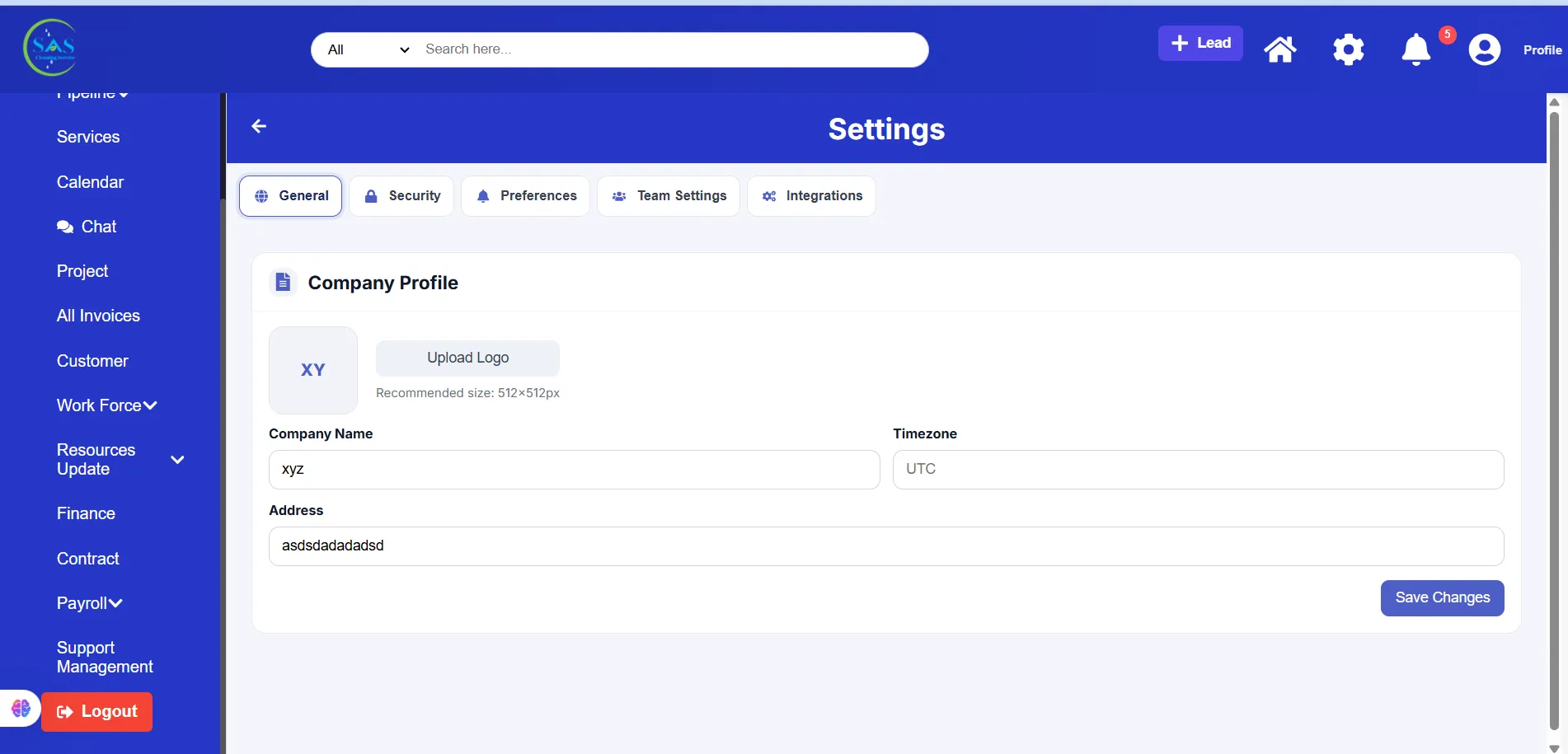
A. General & Security Settings
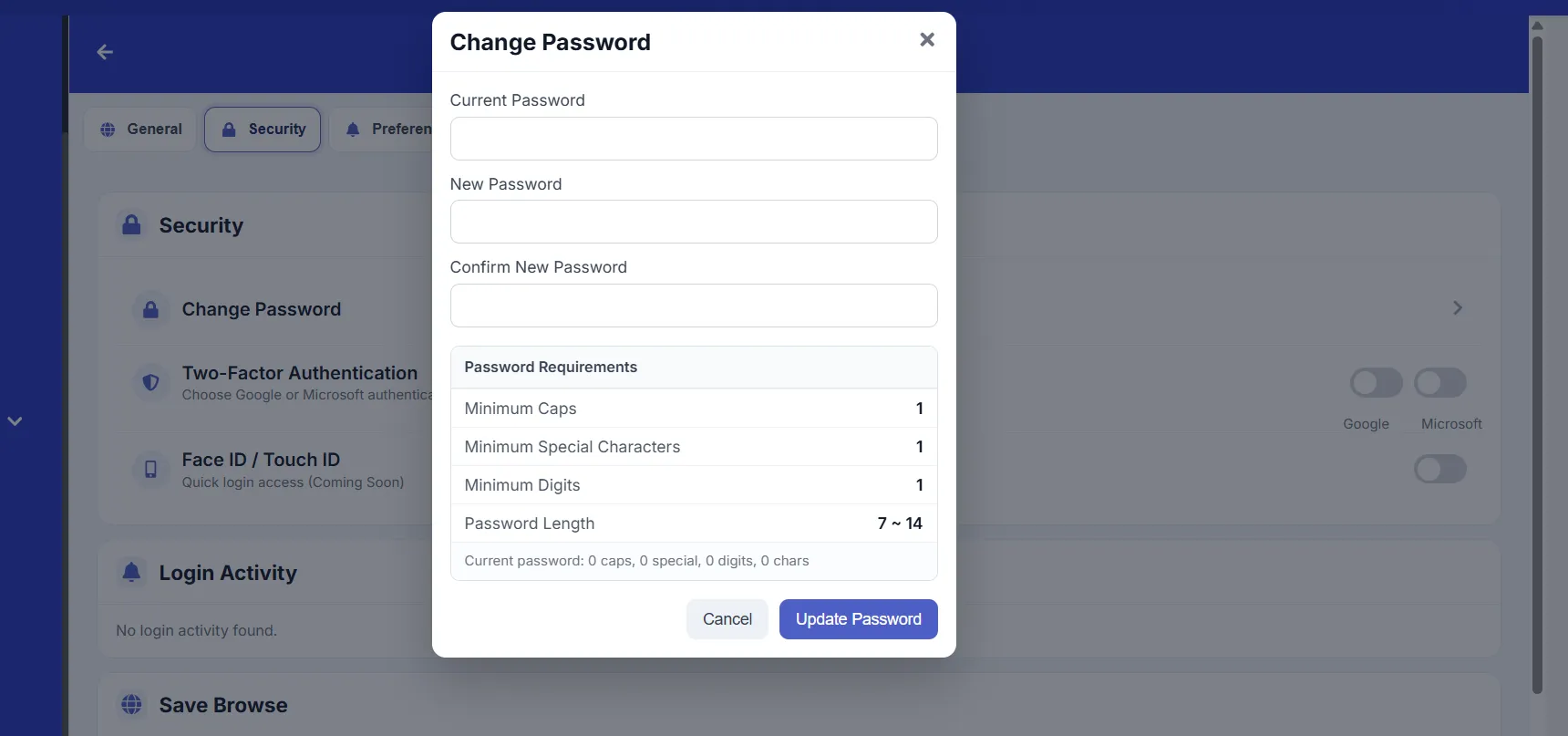
Change Password
You can update your password anytime for better security.
Recommended Password Rules
- Use uppercase and lowercase letters
- Include numbers
- Add special characters
- Avoid simple passwords
Example:
Admin@123
Two-Factor Authentication (2FA)
For extra account protection, enable 2FA using:
- Google Authenticator
- Microsoft Authenticator
This adds an extra security verification step during login.
Biometric Login
You can enable:
- Face ID
- Touch ID / Fingerprint login
This allows faster and more secure login on supported devices.
B. Preferences
Customize how the system communicates with you.
You can manage:
- Product update emails
- Marketing notifications
- General email preferences
Turn notifications ON or OFF anytime.
C. Team Settings
Invite New Members
You can add staff members directly from the Admin Portal.
Steps
- Open Team Settings
- Click “Invite New Member”
- Enter:
- First Name
- Last Name
- Email Address
- Assign a role
- Send invitation
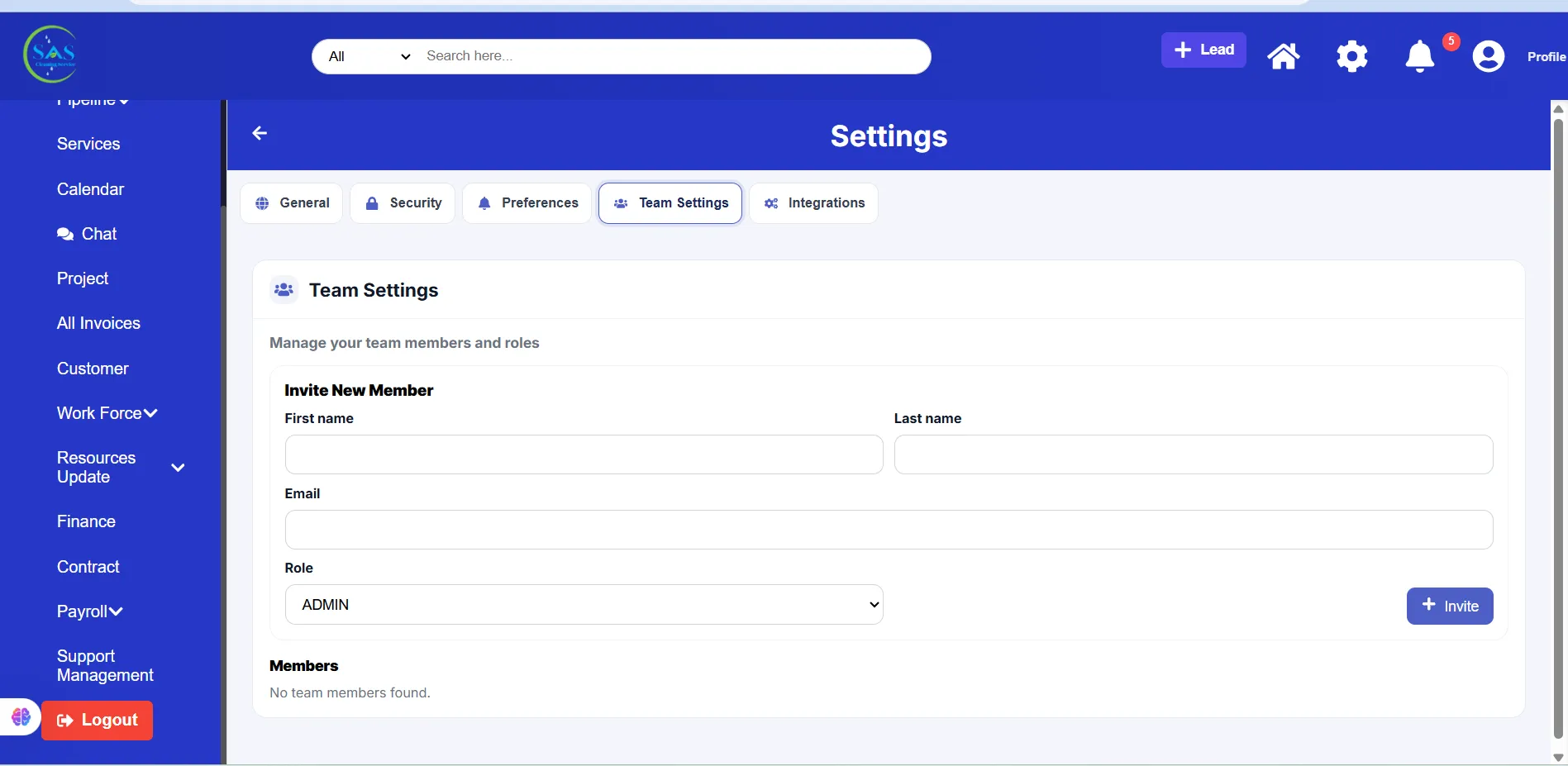
Available Roles
Examples include:
- Super Admin
- Manager
- Finance Staff
- Read-Only Viewer
This helps control user permissions properly.
D. Integrations
The Integrations section helps connect SAS Cleaning Suite with external systems.
API Access
You can manage:
- API keys
- Webhook secrets
Used for connecting external software or automation tools.
Stripe Integration
Admins can monitor Stripe payment connections for:
- Payment tracking
- Invoice automation
- Transaction updates
6. Notifications Center
The Notifications Center keeps you updated about important business activities.
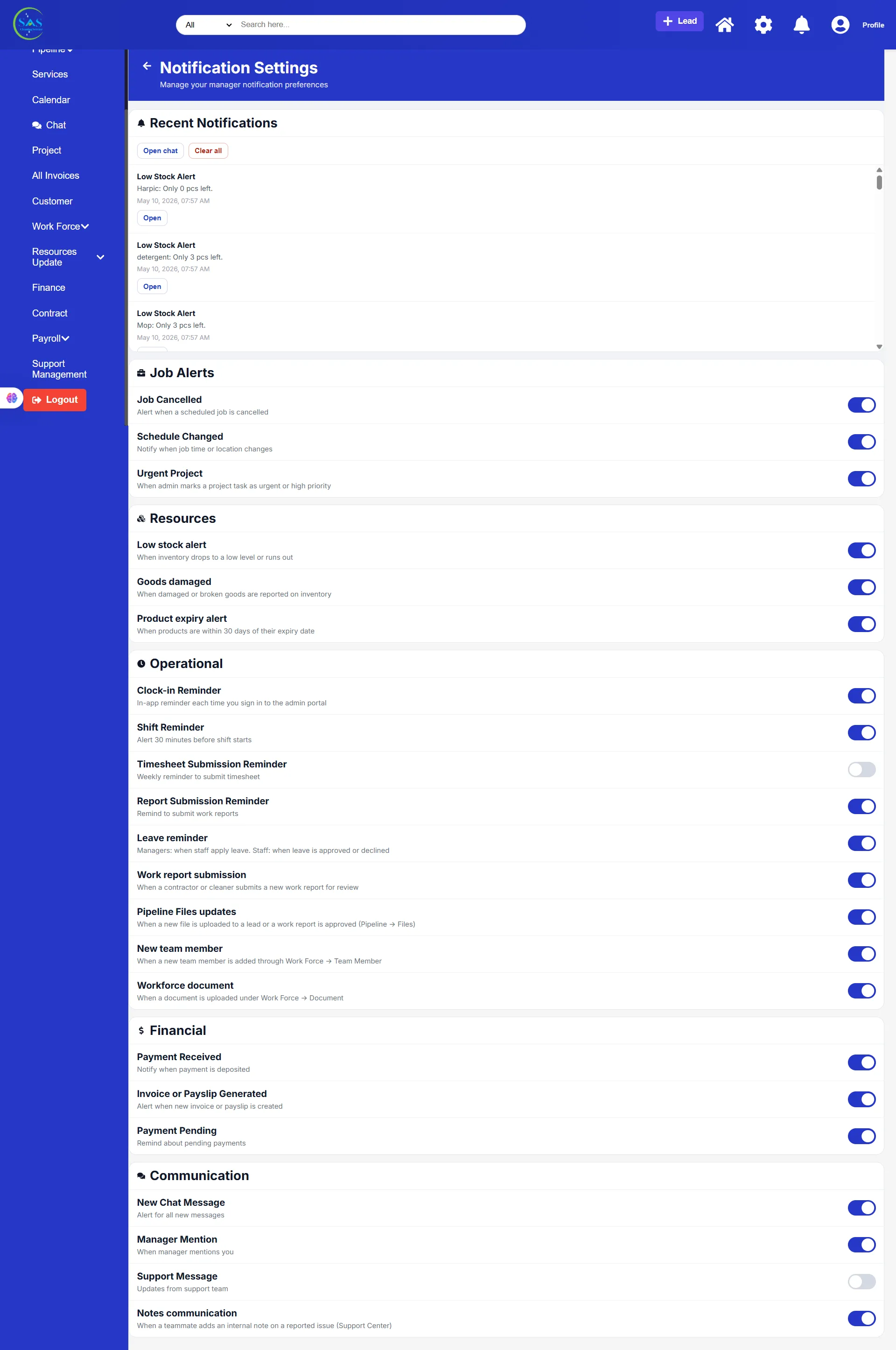
A. Recent Notifications
You will receive alerts such as:
- Low stock warnings
- Payment received notifications
- Timesheet reminders
- Staff updates
- Chat messages
You can:
- Open related items
- Clear notifications
- Respond quickly
B. Notification Preferences
Customize which alerts you want to receive.
Job Alerts
Get notified about:
- Schedule changes
- Job cancellations
- New assignments
Resource Alerts
Receive notifications for:
- Low inventory
- Damaged supplies
- Missing equipment
Operational Alerts
Stay informed about:
- Leave requests
- Pending timesheets
- New work reports
Financial Alerts
Get updates for:
- New invoices
- Pending payments
- Payment confirmations
Communication Alerts
Receive notifications when:
- Someone sends a message
- You are mentioned in chat
- Project discussions are updated
7. Help & Support
The Help & Support section provides tools to solve issues quickly.
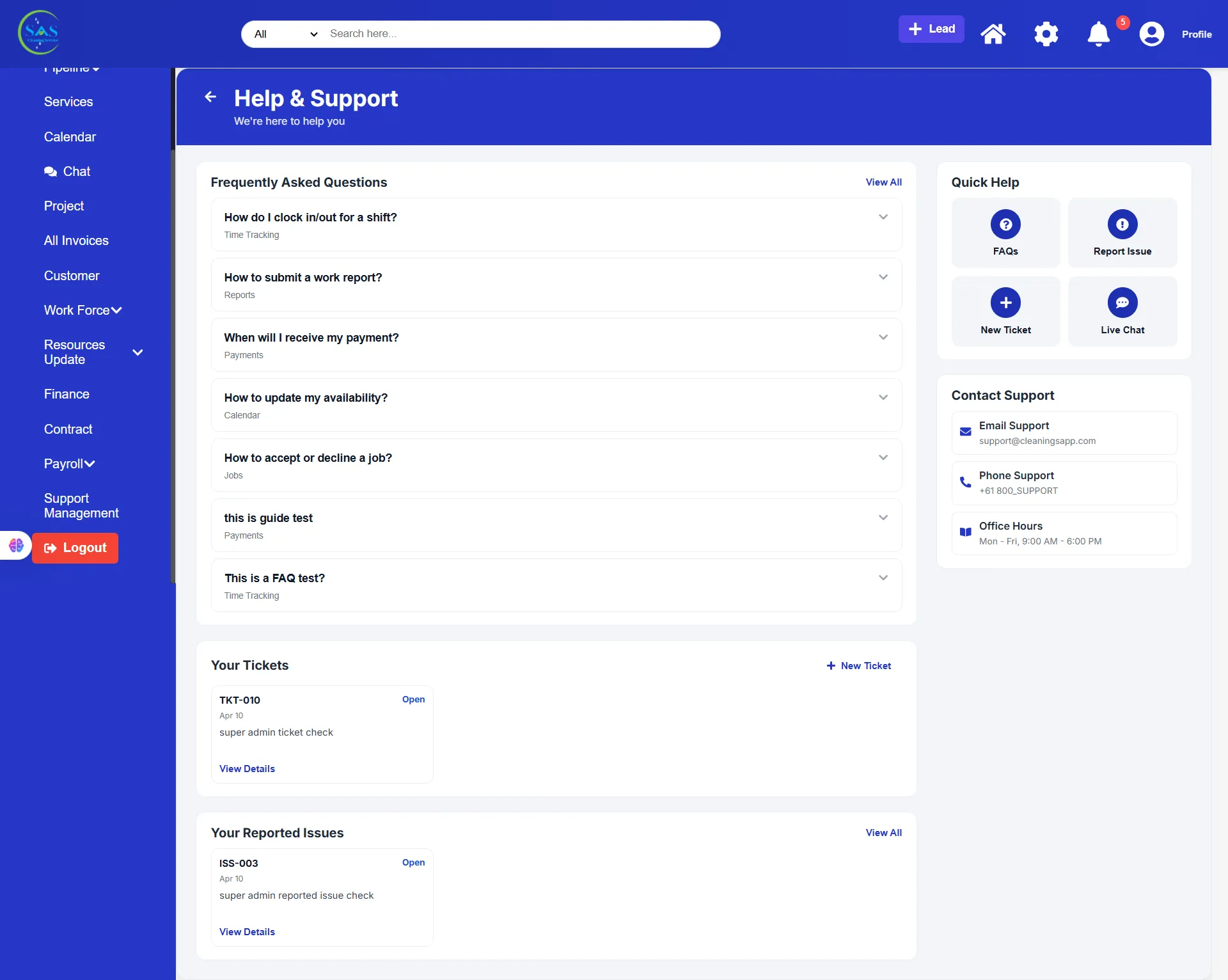
A. FAQ & Help Guides
Browse helpful articles about:
- Time tracking
- Payroll
- Project management
- Staff management
- Account settings
These guides help users solve common problems independently.
B. Report an Issue
If something is not working properly:
- Create a support ticket
- Select issue type
- Set issue priority
- Upload screenshots if needed
- Submit request
This helps the support team understand and resolve issues faster.
C. Live Chat Support
For urgent assistance:
- Start a live chat
- Contact support instantly
- Get real-time help
8. Logout
Always log out after finishing your work to keep your account secure.
To log out:
- Click your profile icon
- Select “Logout”
This prevents unauthorized access to your account.
Daily Workflow Example
- Check notifications and dashboard updates
- Review active sessions and security alerts
- Manage branches and team access
- Monitor staff and permissions
- Respond to support requests
- Update profile or preferences if needed
- Review system activity logs
- Log out securely after work
Best Practices for Admin Users
✔ Keep your password secure and updated
✔ Enable Two-Factor Authentication (2FA)
✔ Review active sessions regularly
✔ Keep staff roles and permissions updated
✔ Monitor notifications daily
✔ Organize branches and documents properly
✔ Respond to support issues quickly
✔ Always log out on shared devices
Conclusion
The Admin Profile & Account Settings section helps you manage your account, improve security, organize your team, and customize your experience inside SAS Cleaning Suite.
By using these settings properly, you can:
✔ Protect your account and company data
✔ Manage users and permissions efficiently
✔ Stay updated with business activity
✔ Improve daily workflow management
✔ Maintain a secure and organized system
Following this guide will help you use the Admin Portal more confidently, efficiently, and securely every day.